
In this article:
- Where to find a flow's status
- All flow statuses
- Troubleshooting an “At risk” or “Critical” flow
- Related articles
This article is for the new Unito flow builder, available to Enterprise accounts created after December 2025. If you want to see the status of a flow on the classic flow builder, see this article.
Where to find a flow's status
Open the flow list on your dashboard and look at the Overall status column.
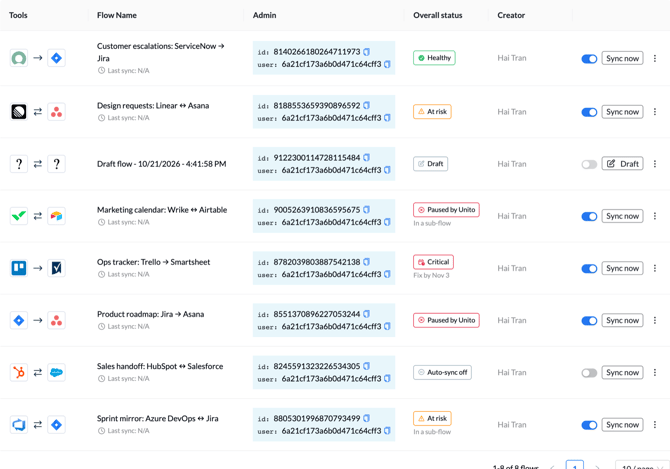
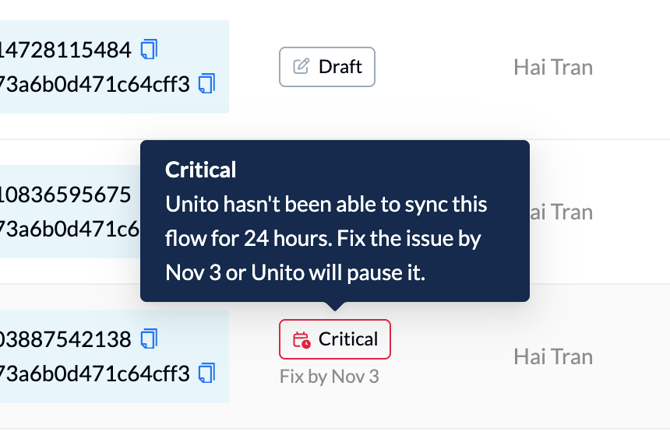
Hover over a status to see a short explanation.
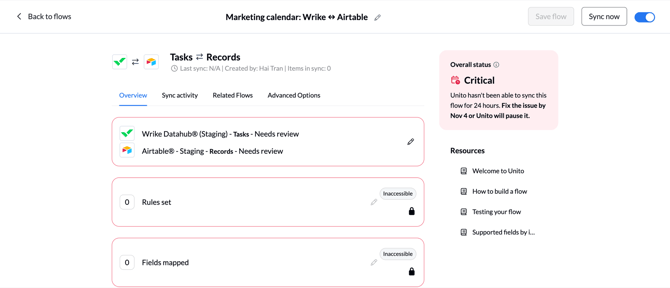
Open a Published flow and the same status appears on the right-hand side of the page in the “Overview” tab.
All flow statuses
Draft
- What it means: The flow is saved but not published. Unito syncs nothing for a draft flow, and draft flows do not count toward your items in sync.
- What to do: publish the flow when you are ready.
Auto-sync off
- What it means: Auto-sync is off for this flow. Items sync only when someone manually clicks “Sync now.”
- What to do: Turn auto-sync back on.
Healthy
- What it means: The flow is syncing without recent errors.
- What to do: Nothing.
At risk
- What it means: The flow is still syncing, but a sync or scan had an error in the last 3 hours. Errors on individual fields count. The flow returns to Healthy once a sync or scan completes with no errors in the last 3 hours.
- What to do: Open “Sync Activity,” filter to “Incomplete” and “Error,” and read the reason. “At risk” works as an early warning, so you can fix a small problem before it grows.
Critical
- What it means: Unito has had errors and no successful sync or scan for 24 hours. The flow keeps trying. If nothing changes, Unito schedules a pause 7 days later and shows you the date. A successful sync cancels the pause.
- What to do: Troubleshoot the issue before the date shown.
Paused by Unito
- What it means: Unito stopped syncing this flow after it kept failing and the pause date arrived. This is the only status where Unito acts for you.
- What to do: Fix the problem that is preventing the sync. Then click “Sync now” to see if it is resolved, or edit and save the flow
Troubleshooting an “At risk” or “Critical” flow
Start from the flow list on your dashboard. Filter the Overall status column to “At risk” or “Critical” to see every flow that needs attention.
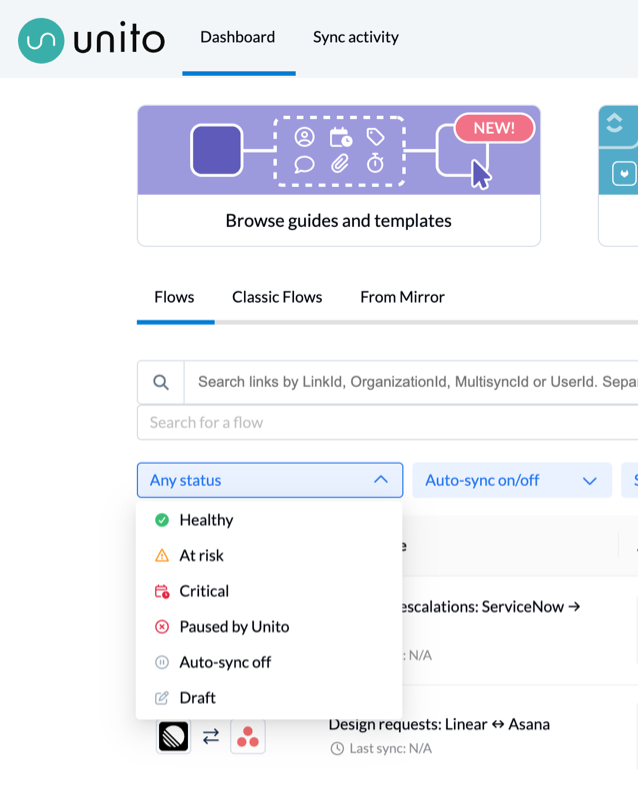
Scenario: your flow shows “At risk”
- Find. In the flow list, filter to “At risk” and open the flow. Open Sync Activity from the flow’s page. It opens already filtered to that flow.
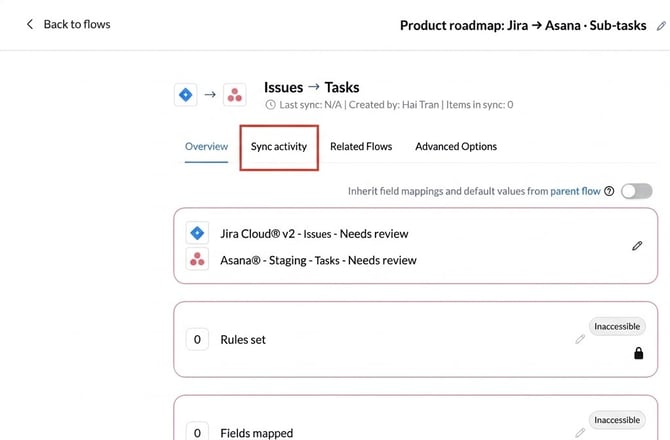
- Analyze. Open the most recent “Flow at risk” event. Its What led to this section lists the errors that moved the flow to At risk. Open any of them to read the reason. Each failed event also says whether Unito retries it by itself.
- Fix. If Unito retries the event, you do not need to act. The status returns to “Healthy” after syncs complete without errors. If Unito does not retry it, fix the cause named in the reason, such as a missing permission.
Scenario: your flow shows “Critical” with a “Fix by” date
- Find. In the flow list, filter to “Critical” and open the flow. Note the Fix by date. If the problem isn’t resolved by then, Unito pauses the flow.
- Analyze. Open Sync Activity from the flow and open the Flow critical event. What led to this shows the errors behind it, starting with the first failure of the 24 hours.
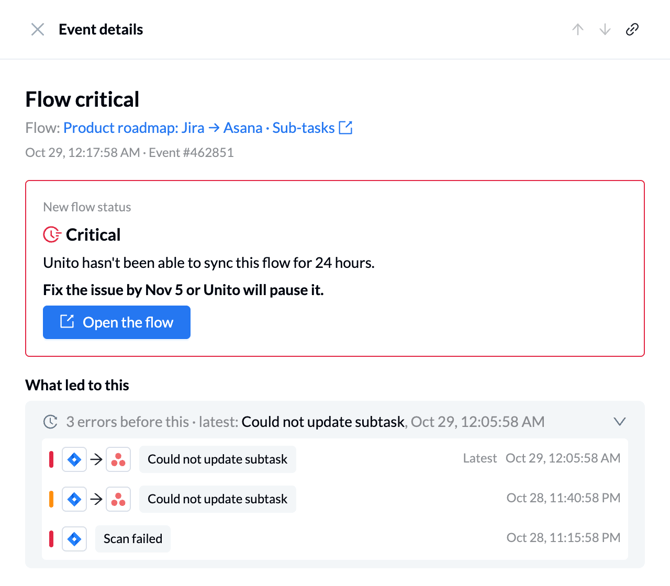
A failed scan often points to an account or permission problem in one of the two tools, so check that the connected account still has access. - Fix. Resolve the cause, then click Sync now. Once a sync succeeds, the flow returns to Healthy. If the Fix by date passes first, the flow becomes Paused by Unito. Fix the cause, then click Sync now or save the flow to resume syncing.
Scenario: a flow with sub-flows shows “At risk” or “Critical”
A main flow’s Overall status shows the most serious status among the main flow and its sub-flows. So the problem may be in a sub-flow, not in the main flow itself.
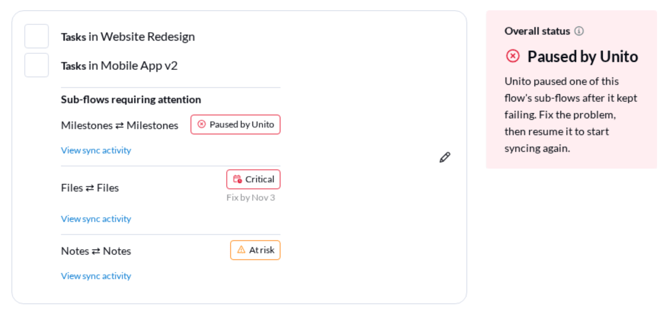
- Find. Open the main flow and open Sync Activity from its page.
- Analyze. Look at the flow health event and its What led to this section. If the errors come from a sub-flow, the item or flow named in each event tells you which one.
- Fix. Fix the cause in that sub-flow, as in the scenarios above. The main flow’s status updates once the sub-flow recovers.
Related articles
- Follow an item's sync history with Sync Activity: see what happened to each item and why it did or did not sync.
- Track changes to your flow with the Change History: see who changed a flow's settings and when.