
In this article:
- Where to find Sync Activity
- What each event shows
- Event types and statuses
- How to troubleshoot why an item did not sync
- Related articles
This article is for the new Unito flow builder, available to Enterprise accounts created after December 2025. Still on the classic builder? See “Get more visibility on your flows with the Activity Stream” and “What is the most recent activity log?”
Where to find Sync Activity
Open Sync Activity from your dashboard to see events across all your flows.
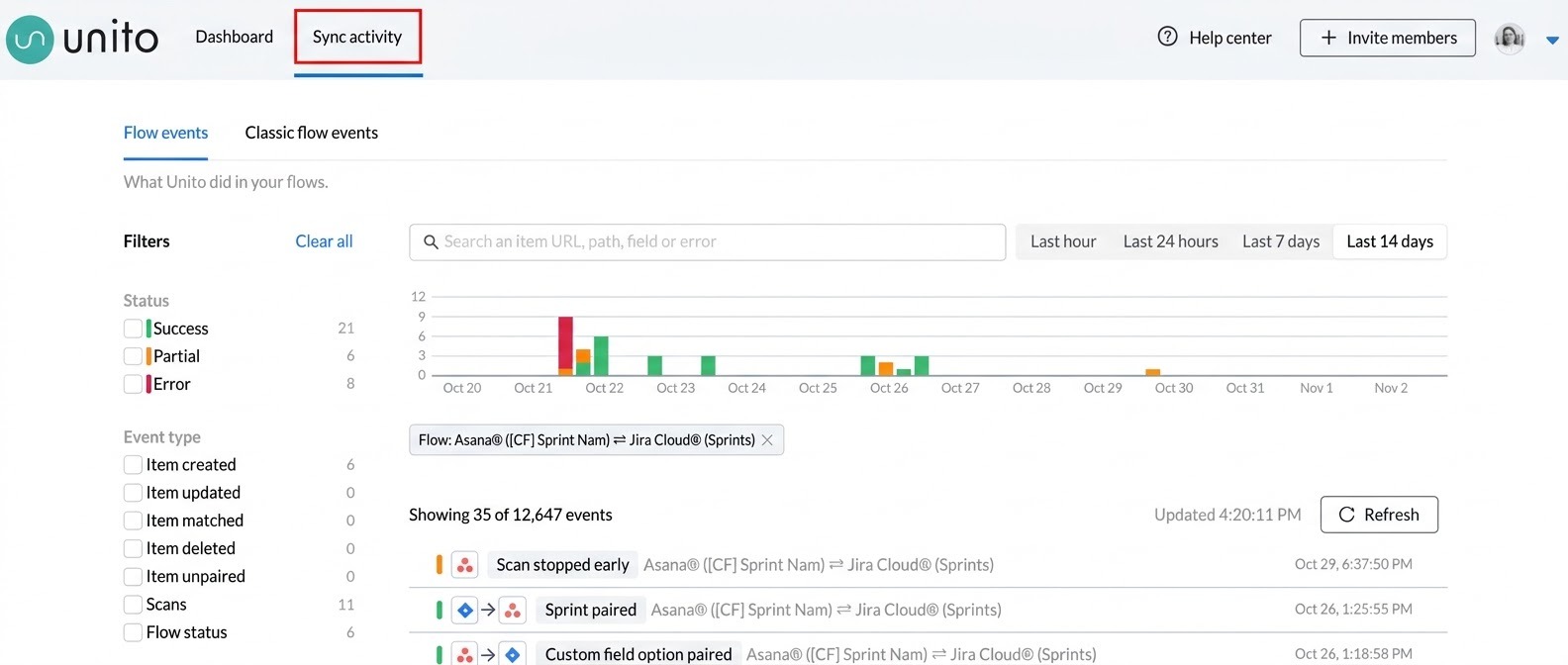
Open it from a flow's page to see the same view filtered to that flow.
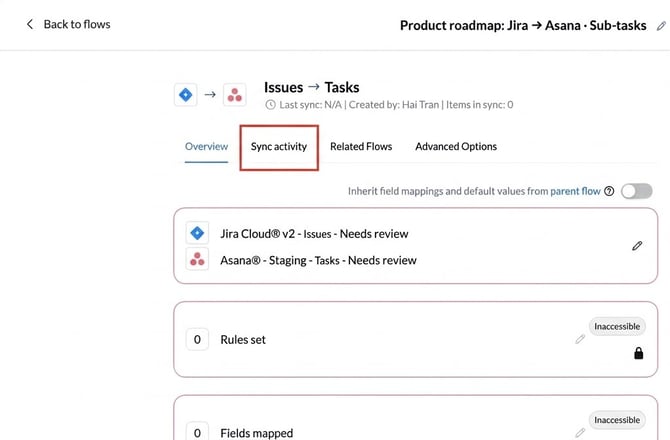
Sync Activity keeps 14 or 30 days of history, depending on your plan.
What each event shows
Each event shows a timestamp, the event type, a status, the item in both tools with links and the flow it belongs to. Open an event to see its details.
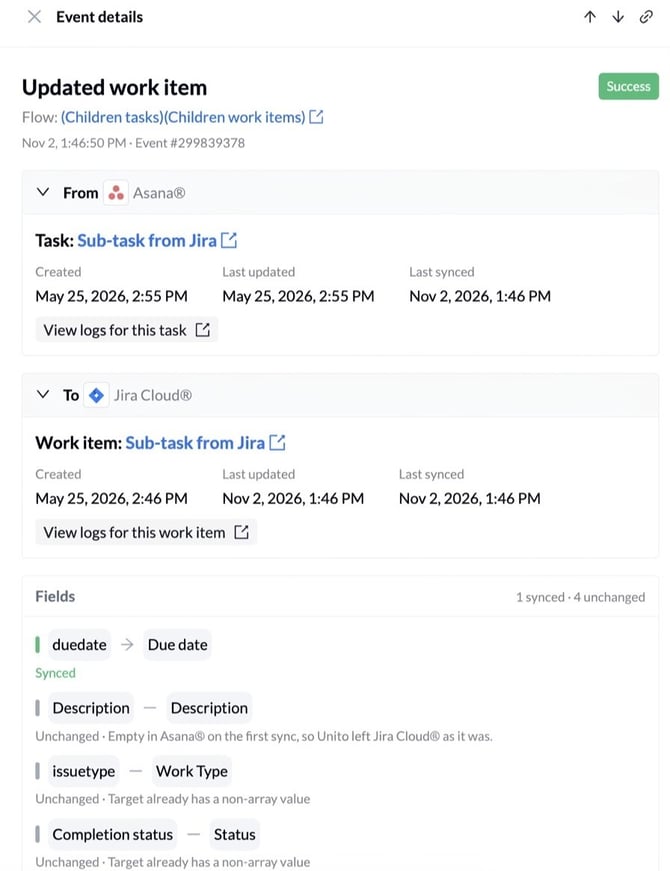
For an item event, the details list each mapped field as written or not written, with the reason in plain words. For example:
- The value is not allowed in the other tool
- The field is read-only
- The other tool's value is newer
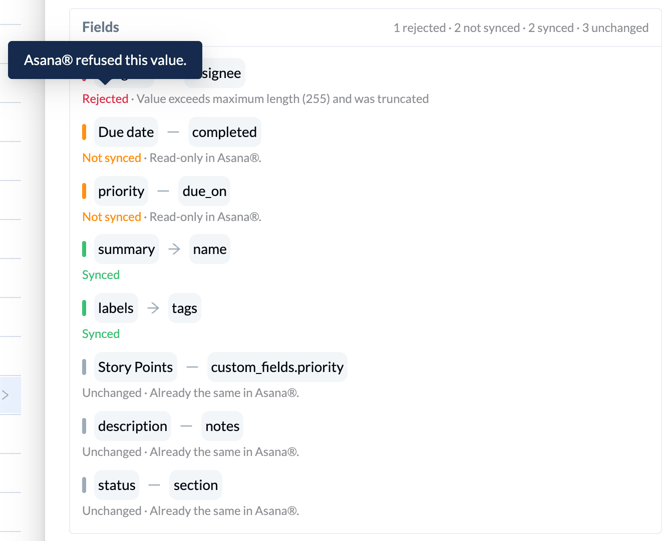
Sync Activity leaves out routine scans that found nothing. A scan appears only when it fails, is interrupted or you click Sync now.
Event types and statuses
Every event has a type, which says what Unito did, and a status, which says how it went. Statuses use a color so you can scan the feed for problems without reading every line.
Event types
Item events
- Created. Unito created the item in the other tool.
- Updated. Unito updated the item in the other tool.
- Matched. Unito found an item that already existed in the other tool and linked to it instead of creating a duplicate. It uses the flow's match rule, such as the same title or ID in both tools.
- Deleted. An item was deleted in a tool.
- Unpaired. Unito removed that link and stopped syncing the pair. This is usually expected. The event names the reason: the item no longer matches the flow's rules, it was deleted in the source tool, or its parent item left the flow.
Scan events
- Scan. Unito's check of a tool for new or changed items. It runs regularly and whenever you click Sync now. A failed scan means Unito could not read that tool, usually because of an account or permission problem. Check that the connected account still has access.
Flow health events
- At Risk, Pause Scheduled, Pause Cancelled, Paused by Unito, and Recovered. These record the status changes described in Understanding flow statuses. Open one to see the reason.
Event statuses
- Success (green): The sync did what the flow asked.
- Incomplete (orange): Part of the sync worked and some fields did not sync, or something did not look right (for example, a tool's API is down) and Unito will retry.
- Error (red): The sync failed. Every failed event says either "Unito retries this by itself" (a tool was briefly unavailable) or "Unito does not retry this". If Unito does not retry, the item syncs again the next time it changes, and the reason says what you need to fix, such as access to a project.
How to troubleshoot why an item did not sync
Say a task you created in Asana is not showing up in Jira. Sync Activity shows you why.
- Search. Paste the item’s URL into the search to see everything that happened to it. You can also filter by flow, event type, status and date. Look for a Created, Matched, Incomplete or Error event.
- Analyze. Read the event’s status and reason. For an Incomplete event, open it and find the field marked as not written. The reason says why. If there is no event at all, the item did not meet the flow’s rules or the scan has not reached it yet.
- Fix. Fix the rule, mapping or access named in the reason. For a skipped field, fix the value in the source tool, then click “Sync now.” If the event says Unito retries this by itself, wait for the next sync.
Related articles
- Understanding flow statuses: see at a glance whether a flow is working.
- Track changes to your flow with your Change History: see who changed a flow's settings and when.