
Unito syncs records from tools like Salesforce into Asana Tables and keeps them up to date. A CSV import copies data once. A Unito flow updates the table as the source of truth changes, so that records are always current across tools.
This article builds one example: Salesforce accounts and opportunities in two linked tables. The same steps work for other tools, such as ServiceNow.
This article covers Unito’s new flow builder, available for selected Enterprise plans starting December 1, 2025. Contact us if you want these features enabled in your workspace.
In this article:
- Before you start
- Create the accounts flow
- Create the opportunities flow
- Sync other records and tools
- What to know
- Other documentation
Before you start
- Check your plans. Asana Tables is available on Asana's Advanced, Enterprise and Enterprise+ plans. You will also need to be on a Unito Enterprise plan.
- Create the table in Asana. Unito syncs records into a table that already exists. It can't create, rename or delete a table. Create one table for each type of record you want to sync.
- Add the fields you want to sync. In Asana, open the table, click Customize, click Fields, then click + Add. Record name is built in. Every other value you want to sync needs a custom field. Match the field type to the data, for example number for an amount and date for a close date.
- Add a reference field if records need to link. To link opportunities to accounts, add a reference field to the opportunities table that points to the accounts table. See Asana's article on reference custom fields.
The example in this article uses two tables created in Asana.
|
Table |
Custom fields to create |
|
Salesforce Accounts |
Salesforce ID (text) |
|
Salesforce Opportunities |
Stage, Description, Amount (number), Close date (date) and Account (reference to Salesforce Accounts) |
Create the accounts flow
Build the accounts flow first. The opportunities flow uses it to link each opportunity to its account.
- Connect your tools. On the Unito dashboard, click +Create flow, select Start here, click +Select a tool and choose Salesforce. Authorize your account if prompted. Repeat for Asana.
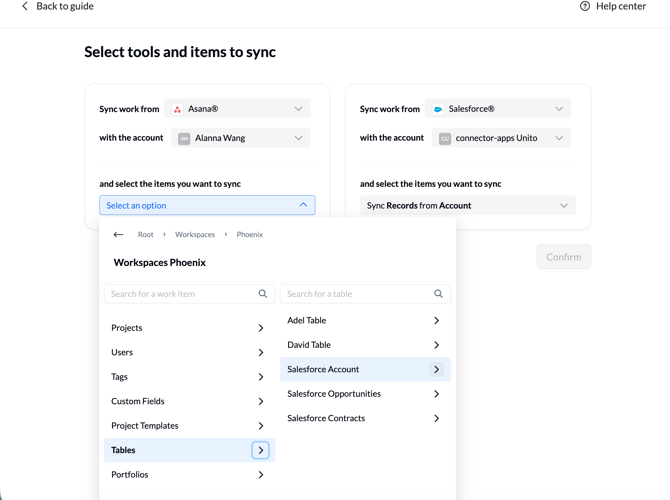
- Choose what to sync.
- In Salesforce, click the “Account” work item and select “Records.”
- In Asana, select your workspace, then select “Tables.” From there, you will see a list of the tables you have created in Asana. Click into the Account table and select “Records.”
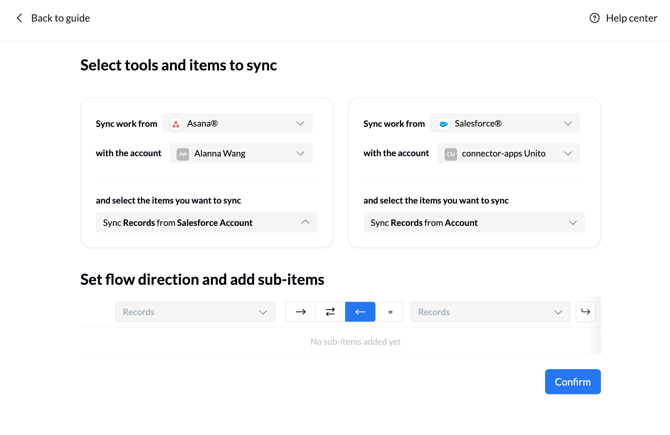
- Choose a flow direction. Select One-way from Salesforce to Asana. Because Salesforce is your source of truth for Account data, Unito creates records in Asana only and creates nothing in Salesforce. Matching links items that already exist. Direction controls how items are created. Field mapping controls how fields update.
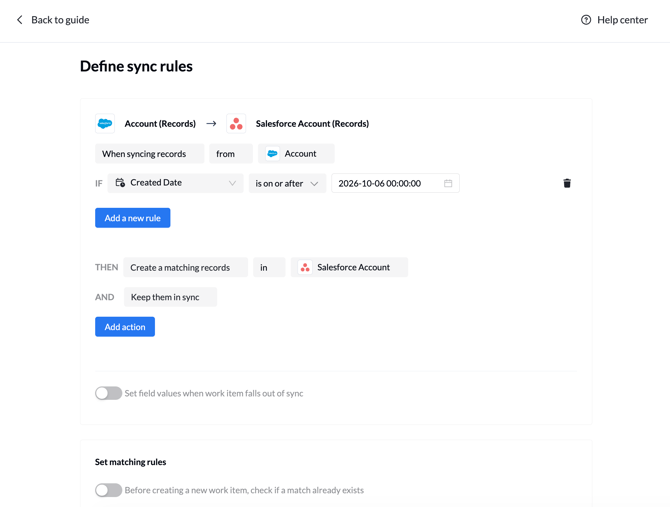
- Set your rules. If you want to sync all accounts, you don’t need to set any rules. However, if you only wanted to sync a subset of your accounts, this is where you would configure them using any of the fields on Salesforce accounts to filter.
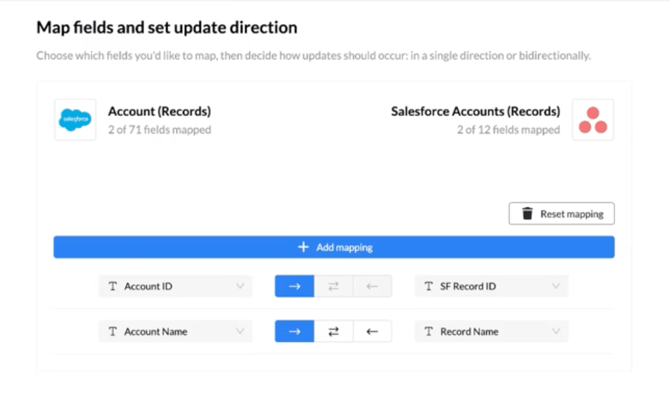
- Map your fields. Click Map automatically or + Add mapping. Map Account Name to Record name and Account ID to Salesforce ID. Set each mapping to one-way (→) or two-way (↔). In this case, we’re mapping one way from Salesforce to Asana, to keep Salesforce the source of truth.
- Publish the flow. Click Publish, name the flow, for example "Salesforce accounts to Asana", and turn Auto sync on. Open the sync activity for your flow to confirm that your accounts have synced over.
Your accounts in Salesforce should now be propagated over into your Asana table. Any additional accounts or changes to account name will automatically be reflected in your Asana table.
Create the opportunities flow
Repeat steps 1 to 4 with the Opportunity object and the Salesforce Opportunities table. Then map the fields and link each opportunity to its account before you publish.
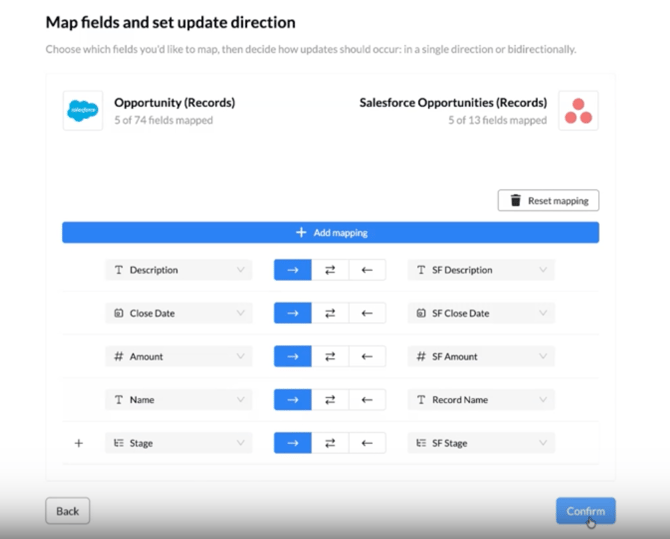
- Map your fields. Use these mappings:
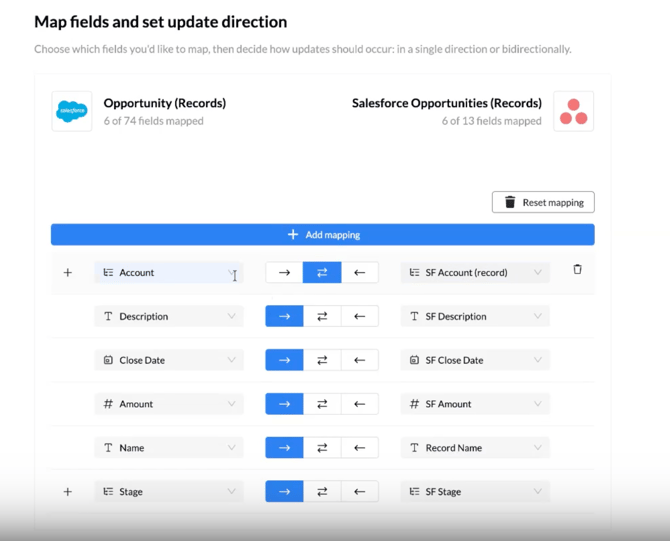
- Link opportunities to accounts. Click + Add mapping. Map the Account reference field in Salesforce to the Account reference field in Asana.
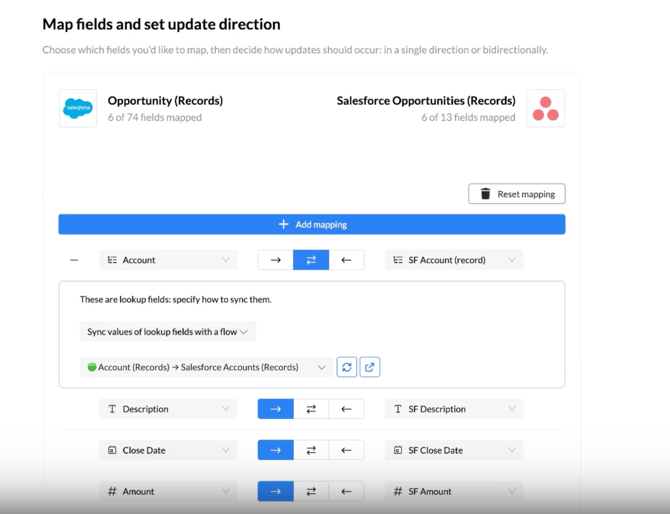
- Choose the accounts flow for the lookup. When Unito asks how to sync these fields, select “Sync values of lookup fields with a flow.” Then select the accounts flow you just created.
- Publish the flow. Click Publish, name the flow, for example “Salesforce opportunities to Asana”, and select All historical items so your existing opportunities sync, not only new ones. Turn Auto sync on, then open the sync activity to confirm the opportunities synced.
When the sync finishes, each opportunity shows its account, along with stage and description.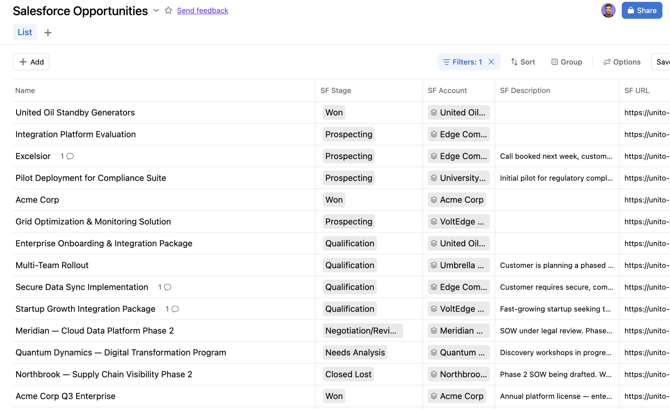
Sync other records and tools
The steps above build one example: Salesforce accounts and opportunities. You can bring other data into Asana Tables the same way. For each type of record, create a table in Asana, add a custom field for each value/field you want to sync, then build a flow for it.
More Salesforce objects. Create a table for each additional object, such as contacts or products. To link a new object to opportunities, add a mapping for it in the opportunities flow.
Data from other tools. For example, you can sync:
- Knowledge articles from ServiceNow, so service teams and AI Teammates work from the current article.
- Assets from ServiceNow, Jira Assets or Airtable, such as devices with their assignee and status, so onboarding and incident tasks point at today’s inventory.
- Inventory and vendor records from Airtable or Smartsheet, so restock tasks sit beside current stock levels.
- Deals and accounts from HubSpot, so delivery teams see what was sold.
To link records across tables, add a lookup field as you did for opportunities and accounts.
What to know
- Tables: Unito can't create, rename or delete a table.
- Standard fields: Record name and the table are the only standard fields. Every other field is a custom field you add to the table.
- Moving records: Unito can't move a record to a different table after it creates the record.
Other documentation
- An Overview of Unito's Asana Integration (Powered by Advanced Sync)
- Creating Your First Flow (Advanced Sync)
- Asana's Tables article in the Asana Help Center
- A Guide to Syncing Lookups
Questions about your setup? Contact us and we'll help.