
In this article:
This article features Unito’s new flow builder available for selected Enterprise plans starting December 1, 2025. Contact us if you want these features enabled in your workspace.
What are mixed hierarchies?
Tools like Jira and Asana have multiple work item types, which can all be synced with Unito. Asana has objects such as portfolios, projects, tasks, and sub-tasks. Jira has epics, stories, sub-tasks, and other custom work item types, to name a few. Hierarchies within these tools keep these work items organized. For example, Asana’s work item hierarchy flows from portfolios to projects, to tasks and sub-tasks. Unito can maintain hierarchies between work items as you sync them, preserving parent-child relationships.
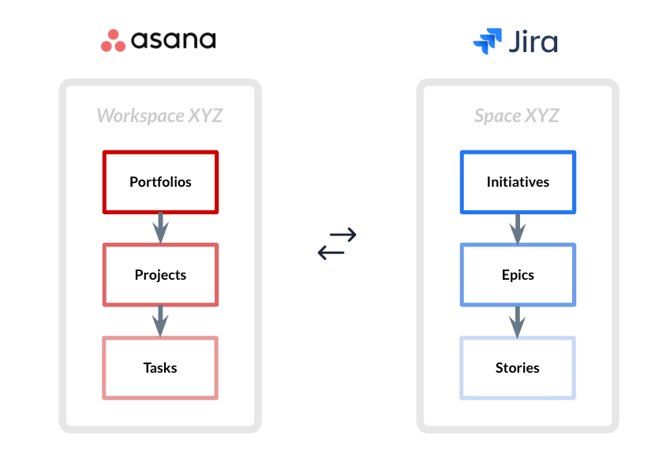
"Mixed" hierarchies give you the flexibility to sync work across different object types or hierarchy levels. Because the hierarchies in different tools don’t necessarily always match — and neither do your workflows — this allows you to ensure the hierarchy in each tool matches the way you work. Unito supports mixed hierarchies, allowing you to customize where work items sync while maintaining relationships between them.
How to sync mixed hierarchies between Asana and Jira
Step 1: Connect your tools and main work items
To sync mixed hierarchies with Unito, you’ll need to establish a parent-level relationship between your Asana Project and Jira Epic.
- Log in to the Unito dashboard and select + Create flow.
- Select Asana and choose the account you wish to use.
- Select Jira Cloud and choose the corresponding account.
- In the Select work item dropdowns, set the first level:
- Asana: Sync Projects from your desired Portfolio.
- Jira Cloud: Sync Work Items from your desired space (we will specify the work item type later).
- Click Confirm.

Step 2: Add sub-items (Tasks to Stories)
Because this is a mixed hierarchy—meaning the parent (Project) and child (Task) items have different fields—you must define a sub-flow for the execution layer.
-
In the Choose flow direction and add sub-items section, click the Add sub-item button.
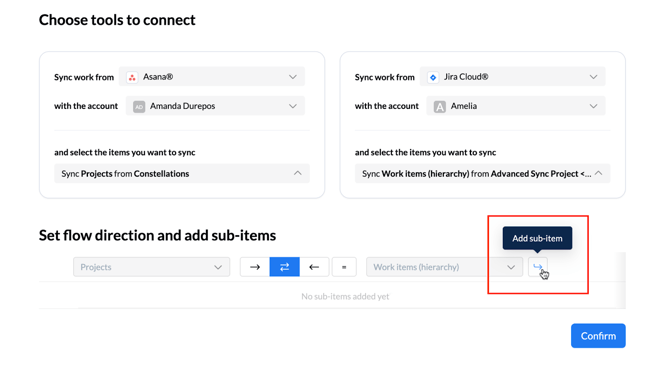
- Map the second level:
- Asana: Sync Tasks.
- Jira Cloud: Sync Children work items.
- You will notice a red exclamation badge and a Draft status for this level. This is expected, as mixed hierarchy sub-flows require manual field configuration to ensure everything appears in the right place on both sides.
- Click the pencil icon to open the sub-flow editor for this level.

Step 3: Review and approve the sub-flow draft
In this step, you must give your "seal of approval" to the field mappings for your Tasks and Stories. This ensures that granular dev work remains fully connected to the appropriate parent project when it syncs.
- Define sync rules: Set filters to determine which Tasks should sync as Stories (e.g., only those with a specific tag or in a specific section).
- Map your fields: Review the auto-generated mappings. Ensure that Asana Task fields like Due Date, Assignee, and Description are mapped to the correct Jira Story fields.
- Click Confirm to save the sub-flow.
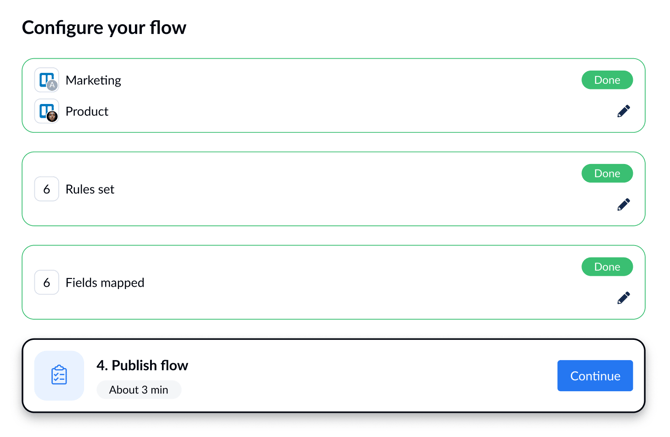
Don’t hit “Publish flow” just yet. You’ll publish this sub-flow along with its parent flow (and any other nested sub-flows) when launching your parent flow.
Step 4: Finalize parent flow and launch
- Navigate back to your parent flow tab: Once you have reviewed the settings, the level will be marked with a green checkmark, indicating it is ready to sync.
- Once you have added any other desired sub-items, click Confirm on the main flow direction screen to return to the parent Project-to-Epic setup.
- Finish setting the rules and field mappings for the parent level (Projects and Epics).
- Ensure that on the rules page, you are limiting Jira side items to only sync Epics
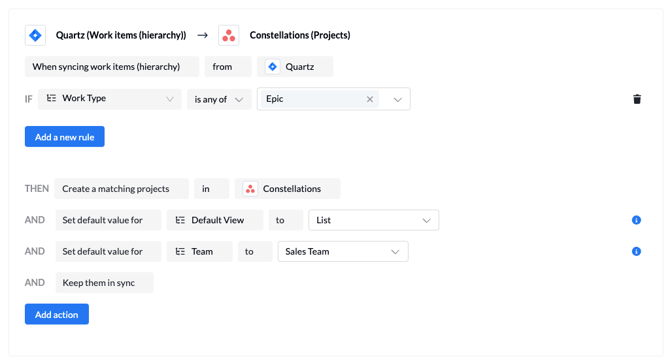
- Ensure that on the rules page, you are limiting Jira side items to only sync Epics
- Click Launch flow.
- A Publish flow modal will appear as a final checklist, listing both the parent flow and the sub-flow that are about to go live.
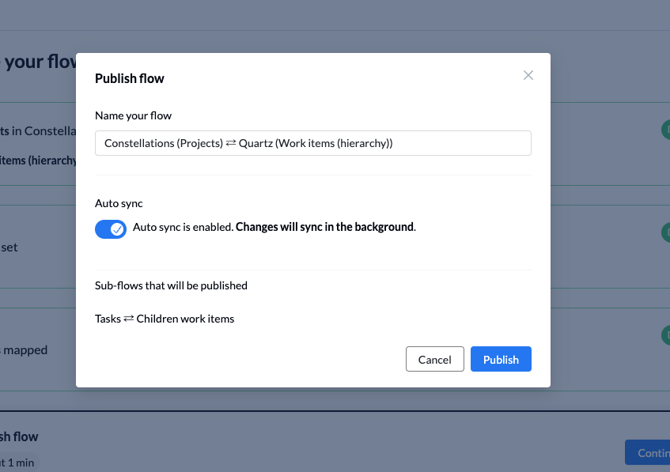
- Click Publish.
Which connectors support mixed hierarchies?
Currently, Unito supports syncing mixed hierarchies for Advanced Sync-enabled connectors. Learn more about Advanced Sync here and supported connectors here.