
In this article:
- What are mixed hierarchies?
- Simple hierarchies vs. mixed hierarchies
- How Unito syncs mixed hierarchies
- Configuring hierarchies in Unito
- Troubleshooting sub-flow errors
- Example use cases for mixed hierarchies
Mixed Hierarchies can be configured on accounts with Advanced Sync enabled. If these options are not visible in your workspace, please reach out to our team to learn more about the powerful features included with Advanced Sync.
What are mixed hierarchies?
Mixed Hierarchies allow you to sync multi-level relationships between work items of different types while ensuring that parent-child relationships stay intact across every tool you use. Ultimately, these hierarchies allow you to set up workflows that match exactly how your organization functions, ensuring teams focused on planning and execution stay in lockstep while working in their tool of choice.
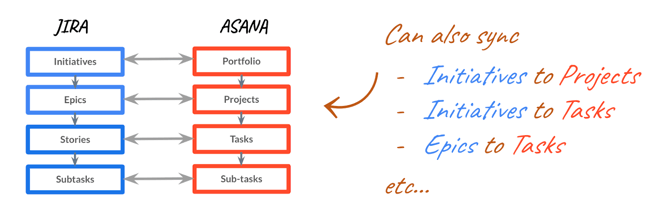
For example, you can map high-level Jira Initiatives and Epics directly to Asana Portfolios and Projects to bridge the gap between strategic planning and technical delivery. This ensures that granular engineering work—like Jira Stories and Subtasks—stays perfectly connected to the right parent project or portfolio when it syncs into Asana.
Simple hierarchies vs. mixed hierarchies
There are two different types of hierarchies (simple and mixed), and the type you use will impact how they are configured in Unito. This article describes how to configure either type. If you are not seeing the same configuration options, you may be building a hierarchy flow belonging to the other "type." When in doubt, reach out to our team and we will be happy to guide you.
Simple hierarchies
In this structure, parent and child items are the same type of work item and share the same set of fields, such as a task containing sub-tasks or a row containing sub-rows.
Because these items share the same set of fields, Unito can automate much of the configuration for you.
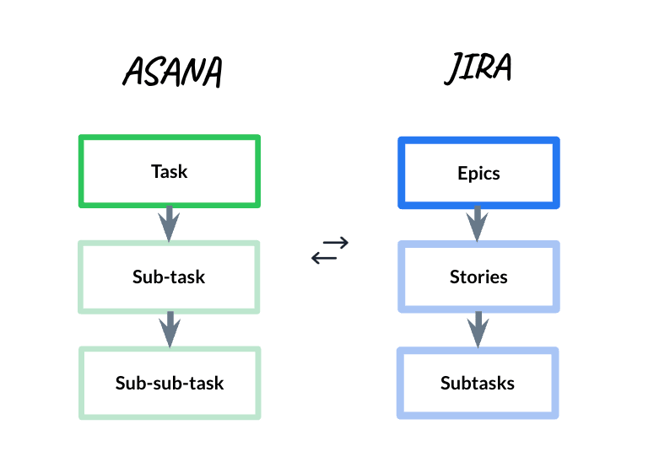
The example above illustrates an example of a simple hierarchy.
Note that in Unito, Jira and Azure DevOps items like Initiatives, Epics, and Stories are treated as the same work item type, meaning they share the same set of fields. This consistency allows nested sub-items to automatically inherit the field mappings and configurations of the parent flow, streamlining your multi-level setup.
Mixed hierarchies
This structure connects different types of work items across multiple levels—for example, an Asana Portfolio containing Projects, which then contain Tasks.
Since different work item types have different fields, these levels require specific mapping and a manual review to ensure your configuration is accurate.
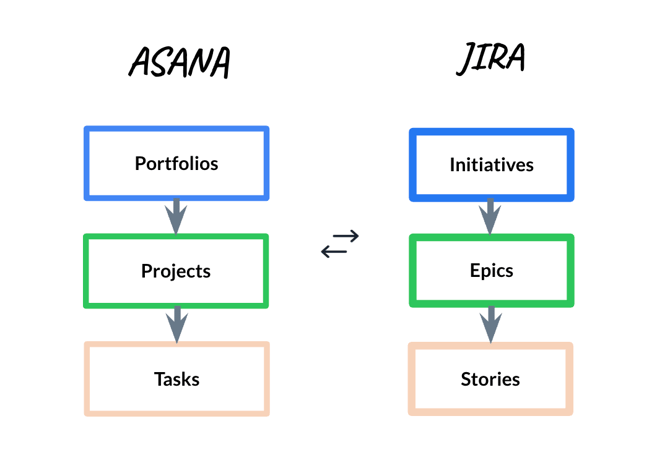
The example above illustrates a mixed hierarchy.
In this structure, each level of the hierarchy consists of different work item types—for instance, mapping Asana Portfolios and Projects to Jira Initiatives and Epics. Because these different item types do not share the same fields, Unito creates draft sub-flows for you to manually review and approve, ensuring your data is mapped accurately across planning and execution layers
How Unito syncs mixed hierarchies
Every level of your hierarchy is managed by its own sub-flow. Unito guides you through the configuration of the main parent flow first, and then helps you define each subsequent sub-flow for sub-items.
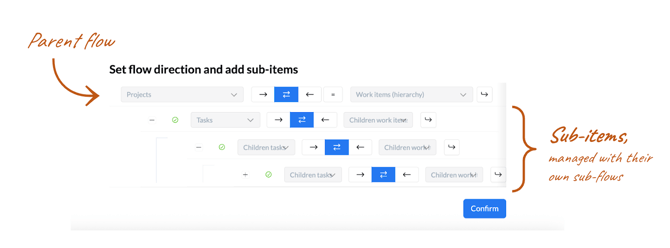
Once the entire structure is built, all levels are launched simultaneously during the final Publish flow step.
Configuring hierarchies in Unito
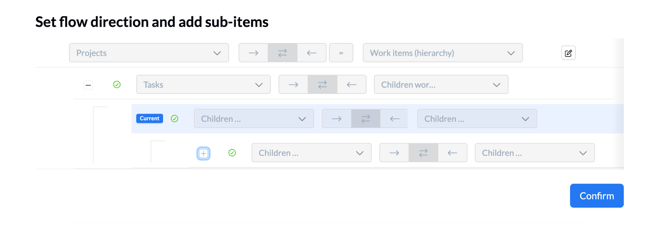
When building your hierarchy, Unito uses the blue "Current" badge as a wayfinding device on the Tool connection page. This badge shows you exactly which level of your hierarchy—and which specific sub-flow—you are currently editing.
Configuring simple hierarchies
- Select your tools: Choose the tools and specific work items you want to connect.
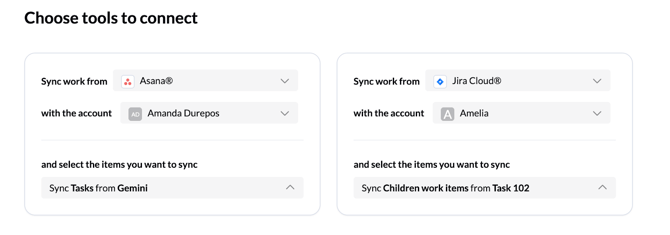
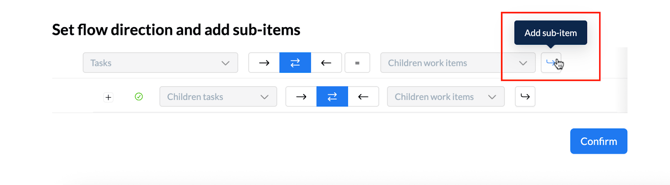
- Add sub-items: Click the Add sub-item button to define the next level, supporting up to 9 levels of depth.
- Use the “sync all sub-items” toggle: Turn on the “Sync all sub-items” toggle to automatically generate 9 levels of sub-items.
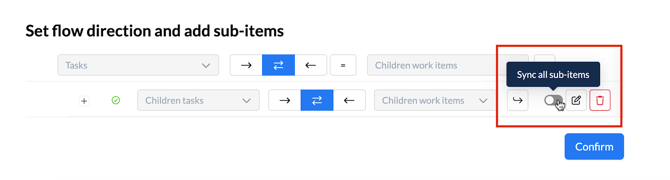 For simple hierarchies, these sub-flows will be auto-configured, as they share the same fields and can therefore inherit the configuration of your parent flow.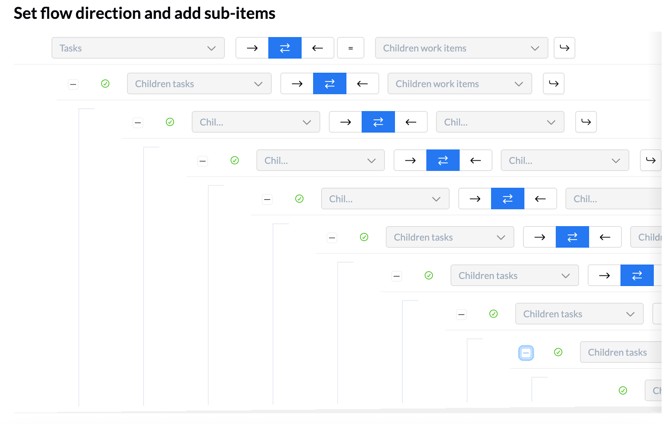
- Understand inheritance:
Field mappings and default values are automatically carried over from parent flows to sub-flows to save you time. You can however click on the pencil icon to configure your sub-flow and override this configuration if you so choose by deactivating this toggle:
- Note on rules: Rules (filters) are not carried over for sub-flows; this ensures that a rule on a parent does not accidentally prevent its sub-items from syncing.
- Exception for comments and attachments: Rules for comments and attachments are carried over automatically to maintain consistent privacy or status settings across all levels of your hierarchy.
Configuring mixed hierarchies
- Connect main items: Select your top-level items, such as an Asana Project and a Jira Epic.
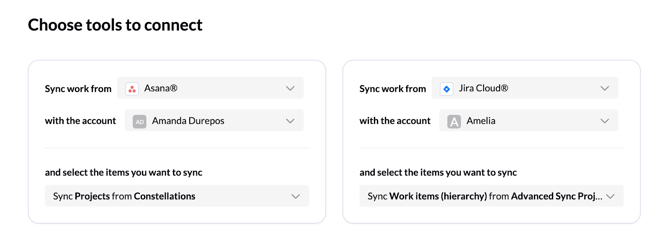
- Add sub-mappings: Click Add sub-item and choose the next level you want to sync in your hierarchy, such as Tasks syncing to Stories.
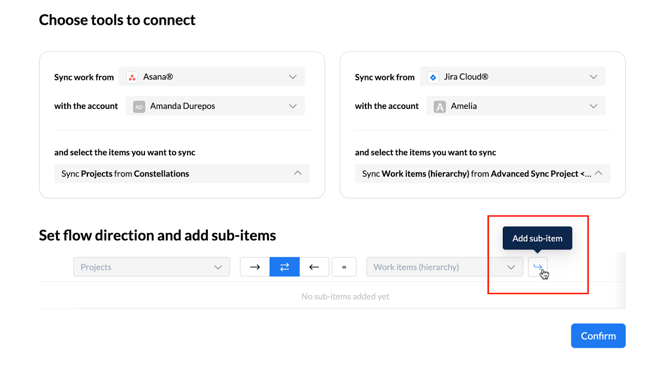
- Review the draft: Because the work item types are different, Unito will create a Draft sub-flow. This level will be marked with a red exclamation badge, signaling that it needs your review.

- Edit and approve: Click the pencil icon to open the sub-flow editor for that level. You must manually review and confirm the field mappings and rules for that sub-flow.
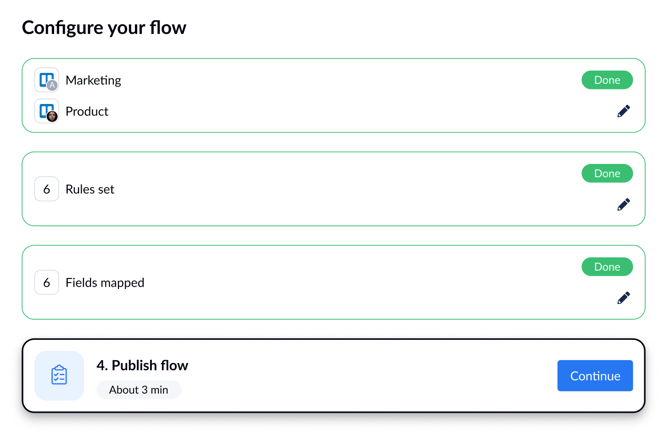 Don’t hit “Publish flow” just yet. You’ll publish this sub-flow along with its parent flow (and any other nested sub-flows when launching your parent flow.
 - Navigate back to your parent flow tab: Once you have reviewed the settings, the level will be marked with a green checkmark, indicating it is ready to sync.
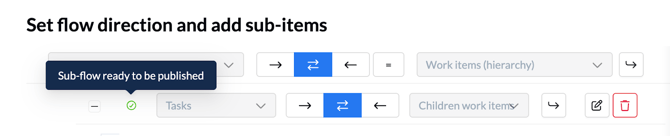
- Finish configuring your parent flow: Once you have added any other desired sub-items, click Confirm. This will return you to the main flow setup where you can finish setting rules and field mappings for your parent-level items.
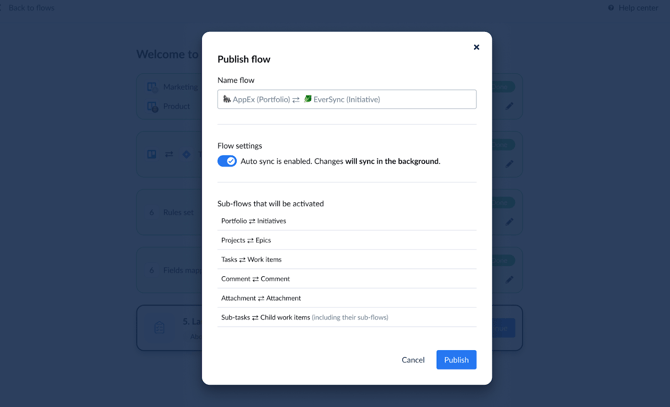
- Launch your parent flow: This is the final step. Clicking Launch flow will bring up the Publish flow modal.
Troubleshooting sub-flow errors
The Publish flow modal acts as a final checklist before your hierarchy goes live. It will alert you to any errors that might prevent a successful sync, such as:
- Missing required mappings: You will see a red exclamation if a sub-flow is missing a mandatory field mapping required by the destination tool.
- Unreviewed drafts: Mixed hierarchies will show an error if you haven't opened and approved the auto-generated draft for a sub-flow level.
- Connection issues: If one of the accounts used in a sub-flow has a credential error, the modal will highlight the specific level needing attention.
You can click Edit flow directly from the error list to jump to the exact level that needs fixing.
Example use cases for mixed hierarchies
These examples show how you can model flows to work exactly the way you do. The possibilities are truly endless.
|
Tool A + hierarchy |
Tool B + hierarchy |
What this enables |
|
Salesforce Opportunity → Tasks |
Asana Project → Tasks |
Closed-won handoff: Automatically creates an Asana project when a deal is won, giving post-sales teams immediate visibility. |
|
Salesforce Account → Tasks |
Asana Project → Tasks |
Strategic account planning: Centralizes visibility for renewals and churn risk mitigation across departments. |
|
Asana Portfolios → Projects |
Jira Initiatives → Epics |
Strategic alignment: Tracks technical delivery in Jira while maintaining the broader strategic structure in Asana. |
|
Smartsheet Sheets → Rows |
Azure DevOps Epics → Stories |
Consulting management: Keeps frequent project start/stop cycles in sync between PM sheets and dev backlogs. |
|
ServiceNow Incident → Tasks |
Asana Task → Sub-tasks |
ITSM routing: Orchestrates cross-functional IT workflows, such as incident swarming, across different tools. |
|
Asana Portfolio → Projects |
Smartsheet Parent row → Child rows |
Executive visibility: Ensures team-level delivery progress automatically rolls up to executive-level portfolios for reporting. |