
In this article:
Where to find the nodes
Go to Select tools and items to sync, choose Jira Cloud, open the item picker, and select a space. You'll see Work items (flat), Work items (hierarchy) and Work items (strict hierarchy).
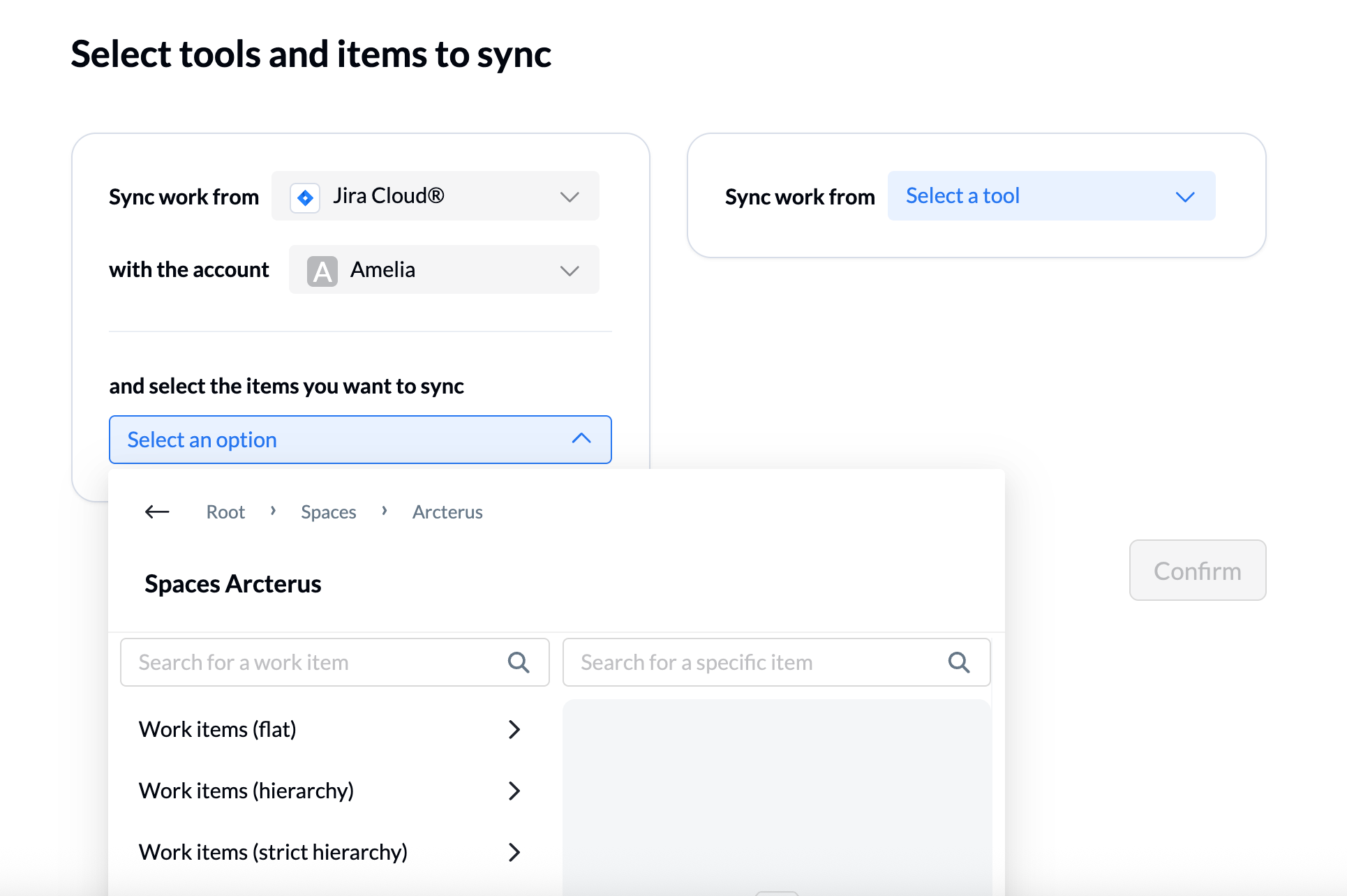
These three options appear when your workspace uses the modern flow builder with our Jira Cloud connector, powered by Advanced Sync. If these options do not appear, you’re on the classic flow builder.
What each node does
Work items (flat)
This node syncs every work item type in your Jira space except sub-tasks, as a flat list, regardless of where each work item sits in Jira.
Parent-child relationships aren’t preserved by default. For example, you can sync every Bug in a space to a list of tasks in another tool.
Work items (hierarchy)
This node preserves parent-child relationships.
It starts from work items that have no parent, regardless of their work item type, and syncs their children as sub-items, so the links between parents and children carry over to the other tool.
For example, you can sync Epics that have no parent, with their work items and sub-tasks beneath them, as parent tasks and subtasks in another tool.
Work items (strict hierarchy)
This node follows the work type hierarchy set up in your Jira instance and enforces that each Unito sub-flow exclusively sync a specific level of the Jira work type hierarchy.
Each level appears as its own choice in the item picker, such as Initiative / Feature (Level 2), Epic (Level 1) and Story / Task / Bug / Milestone (Level 0), and becomes its own part of your flow.
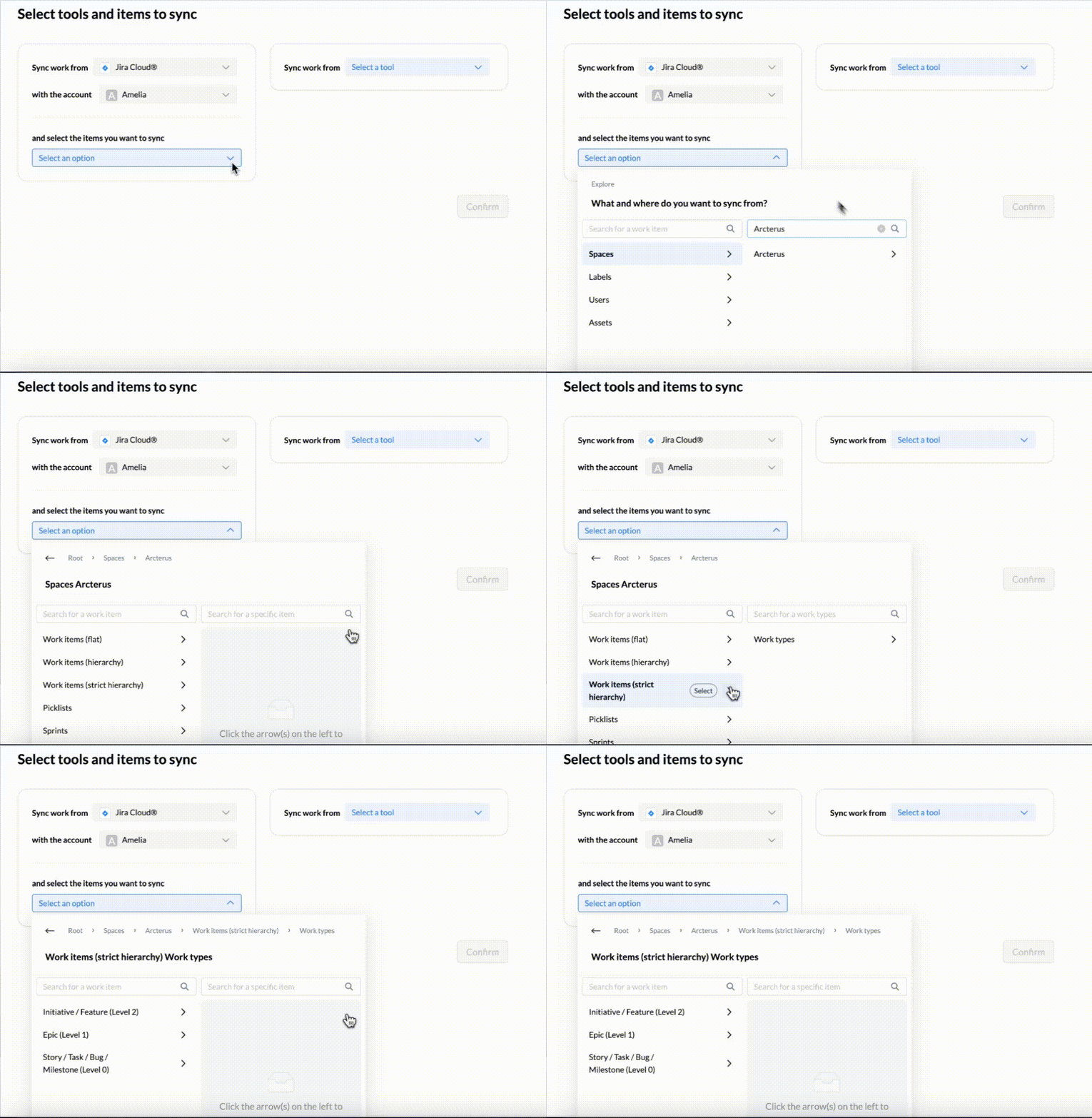
For example, you can sync only Epics and the work items under them, even though the Initiatives and Features above them are not part of the flow.
How to choose
|
Node |
Choose it when |
Keep in mind |
|
Work items (flat) |
You want work items in a flat list, filtered by rules (such as only Bugs, a specific label, or a specific team), no matter where they sit in the Jira hierarchy. You’re reporting on or tracking work without a defined hierarchy. |
Parent-child relationships aren’t preserved by default. |
|
Work items (hierarchy) |
Your workflow depends on parent-child relationships, and you want to start from work items that have no parent and sync everything beneath them. |
You can’t start partway down. An Epic that sits under an Initiative, for example, can’t be a starting point. |
|
Work items (strict hierarchy) |
You want to start at a specific level, even if the levels above it are not part of the flow. You want each level handled separately. You want each level to only offer the work types that belong to it, so a flow set up for Epics can’t create a Story by mistake. |
The levels depend on how the hierarchy is set up in your Jira instance. Sub-items are always the level directly below (for example Stories under Epics).
|
TL;DR
- Do you need parent-child links in the other tool? If not, choose flat.
- Do you want to start from items that have no parent and bring everything beneath them? Choose hierarchy.
- Do you want to start at a specific level, or set up each level on its own? Choose strict hierarchy.
Example: the same Jira space, three results
Say your space has Initiatives, Epics, Stories and sub-tasks, and every Epic sits under an Initiative.
- Flat: syncs the Initiatives, Epics and Stories as one list of top-level items. Sub-tasks are left out.
- Hierarchy: starts from the Initiatives, because they’re the only items with no parent. The Epics, Stories and sub-tasks beneath them come along as sub-items.
- Strict hierarchy: you pick the level to start from. Start at Epics, and the Stories beneath them come along, without the Initiatives.