
In this article:
- What are items in sync?
- How are items in sync counted?
- What affects my items in sync count?
- What doesn’t count as an item in sync?
- What happens if I go over my items in sync?
- How can I decrease my items in sync count?
What are items in sync?
A work item (e.g., a task, ticket, row, issue, contact, opportunity) is counted as an item in sync whenever Unito is keeping it up to date automatically. Some connectors have multiple types of items in sync (e.g., tasks, projects, and portfolios can all be items in sync in Asana).
Unito automatically keeps items in sync up to date, so your teams don’t waste time switching tools or copying and pasting data between them. That’s why your Unito plan’s pricing is based on the number of items in sync you have.
Unlike other integration solutions, Unito doesn’t charge you for the number of fields you sync, the number of updates you make, or the API calls your flow needs. Individual updates don’t affect your pricing, only your current total number of items in sync.
How are items in sync counted?
When Unito keeps work items up to date across tools, every version of that work item counts as an item in sync.
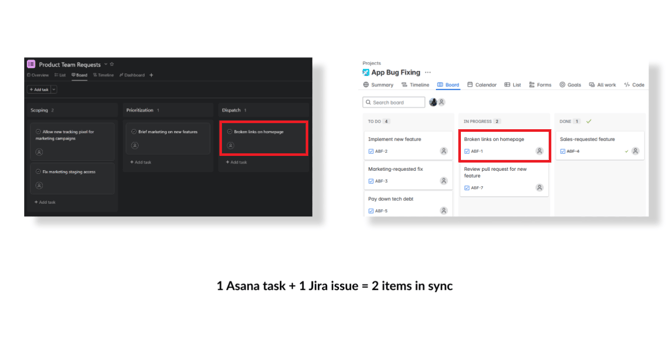
For example, if you sync an Asana task to Jira, where it becomes a Jira issue, Unito will update both the Asana task and the Jira work item as you work. That means you will have two items in sync:
- The original Asana task.
- The synced Jira work item
 Now, say you also have a Unito flow syncing a Jira project with a GitHub repository. If the Jira work item originally synced from that Asana task is also synced to GitHub, the GitHub issue Unito creates and keeps in sync will also count as an item in sync. This would bring your total number of items in sync to three:
- The original Asana task.
- The synced Jira work item.
- The synced GitHub issue.
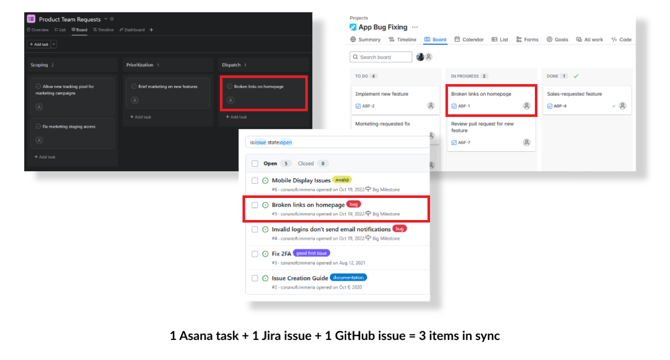
Each version of a work item is counted as a distinct item in sync across tools. An item is only ever counted once, even when more than one flow keeps it up to date. In this example, the Jira work item is part of two flows, but it still counts as one.
Here are a few other things to keep in mind:
- Subtasks count as items in sync: Subtasks are considered individual work items. When Unito syncs a subtask from one tool to another, the two subtasks will each count as an item in sync.
- Fields aren’t counted: Fields within work items don’t count as items in sync. Descriptions, dropdowns, custom fields, and other fields aren’t counted.
- Updates aren’t counted: You can make an unlimited number of changes to your items in sync. Unito flows don’t count changes, updates, or API calls, only the total number of items in sync you have.
- Items behind a dropdown field count: Items that Unito keeps up to date so a dropdown field stays accurate, like a product or component list, count too.
- Work items only count when Unito is keeping them up to date: If Unito stops syncing an item, it stops counting.
- For example, if you have a Unito flow that only syncs open Asana tasks, closing a task will remove it from your count.
- Similarly, work items in your tools that aren’t synced with Unito aren’t counted as items in sync. For example, if your Unito flow has a rule that only syncs Jira issues with a specific owner, assigning that issue to someone else will remove it from your count.
What affects my items in sync count?
Anything that increases or decreases the number of work items Unito syncs will affect your items in sync count. This can include:
- Changing the rules of a flow.
- Closing multiple work items.
- Creating new work items.
- Creating new flows.
- Deleting flows.
What doesn’t count as an item in sync?
Here’s what Unito doesn’t count as an item in sync:
- Items that Unito only updates in one direction. If a flow only sends updates one way, only the items Unito updates count. If updates go both ways, both sides count.
- Comments and attachments that Unito copies once and never updates.
- Flows that only match items, or have no field mappings. For example, a flow that matches people between tools so assignees line up, without creating or updating those people.
- Flows that haven't run in over 30 days. If a flow is broken, switched to manual syncing and never triggered, or otherwise stops running, its items stop counting after 30 days. Running a manual sync makes its items count again.
- Deleted flows. When you delete a flow, its items stop counting right away.
What happens if I go over my items in sync?
Enterprise plans include overage protection in case you exceed your items in sync count, as defined in your service agreement.
How can I decrease my items in sync count?
We have a full guide to managing your items in sync count here, but here’s a quick overview:
- Creating or updating rules: The more work items your rules filter out, the lower your items in sync count will be.
- Exclude subtasks in field mappings: When mapping your fields, you can choose to include or exclude subtasks. By excluding them, you can reduce your total items in sync count.
- Close work items: If your Unito flow only syncs open work items, close work items you no longer need to remove them from your items in sync count.
- Delete unneeded flows: Deleted flows stop counting right away.