
In this article:
- What are lookups in Unito?
- Types of lookups Unito can sync
- How lookup sync works in a flow
- Mapping fields nested behind a lookup
- Example use cases for lookup sync
What are lookups?
Lookups are the non hierarchical associations that link one work item to another. These connections add important context such as owners or linked records. They do not create a parent child structure but they help teams understand relationships and responsibilities.
Examples include:
- A Jira issue linked to a Salesforce Case
- An Asana task referencing a Customer record
- A user assigned to a work item
- A dropdown value that points to a related work item
- A task blocked by another task
Syncing these associations ensures that the context surrounding the work moves with it across tools.
Types of lookups
Unito supports several categories of lookup fields.
- User field lookups: These fields reference people. They ensure that the same individual is recognized across both tools.
Examples:- Asana: Assignee, Collaborators
- Jira: Assignee, Reporter
- Smartsheet: Assigned To
- Azure DevOps: Assigned To, Created By

- Generic work item lookups: These lookups connect a work item to a separate record such as a customer, account, service, or project.
Examples:
-
- Salesforce Cases linked to Accounts
- ServiceNow incidents linked to services
- Jira issues linked to Epics or other issues
- Asana tasks linked to projects or goals
- Enum or dropdown fields: These are labeled options that may correspond to predefined work items or values. Syncing them keeps terminology aligned.
Examples:- Jira: Components, Labels, custom pick lists
- Asana: Dropdown custom fields and Tags
- Azure DevOps: Iteration or Area Path
- Smartsheet: Dropdown or multi-select columns

- Self-reference lookups: These links describe how work items relate to each other, such as blockers or predecessors. Syncing them keeps dependencies aligned across tools.
Examples:-
Asana: “Blocking” and “Blocked by”
-
Jira: Issue links like "Blocks "or "Is blocked by"
- Azure DevOps: “Predecessors” and “Successors” fields
-

How Unito syncs lookups
Lookups are mapped during the Field mapping stage of flow setup.
Step 1. Unito detects lookup fields
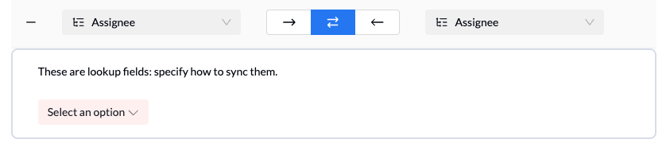
When Unito identifies a field that links to another work item, you will see a banner indicating that these are lookup fields.
Step 2. Select sync mode for the lookup
When Unito detects that a field is a lookup, it automatically surfaces the two configuration options available for mapping it.
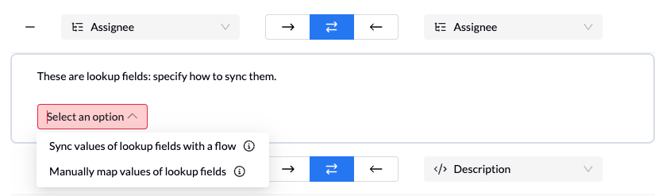
Sync values of lookup fields with a flow
Syncs the lookup as a work item. This keeps the full referenced record aligned across tools. Use this when teams need the complete record, not just the label.
Manually map values of lookup fields
Syncs the lookup as a value. This only transfers the stored value rather than the underlying work item. Use this for lightweight context or small, stable value sets.
When to sync lookups as work items vs values
Sync as work items when teams need the full record kept aligned across tools. This applies when:
- Both sides update and rely on the same work item
- Multiple items depend on it and it must remain consistent
- Reporting or SLAs use its full set of fields
- You want new work items created and synced automatically
Work item syncing creates a dedicated flow and brings over all fields, giving complete alignment.
Sync as values when teams only need a lightweight reference. This is better when:
- Only the label or context is needed
- Creating work items in the destination would add noise
- Sensitive data shouldn’t be surfaced
- You prefer a simple flow with minimal maintenance
Value syncing avoids the overhead of full work item creation while keeping context in sync.
Step 3. If selecting “Sync values of lookup fields with a flow”
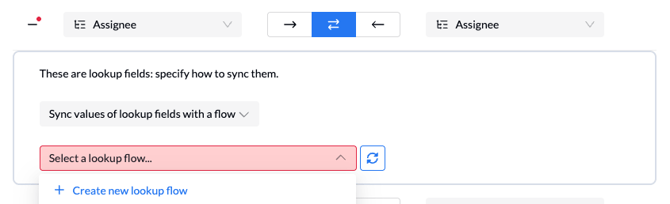
If you select “Sync values of lookup fields with a flow,” Unito checks whether any existing flow or flow draft is already syncing that same pair of lookup fields. The interface then shows one of the following outcomes:
- No matching lookup flow or draft exists
If Unito does not find any live flow or draft syncing the same lookup pair, you will see a “Create new lookup flow” option. Selecting this creates a draft flow that will launch in a new window.
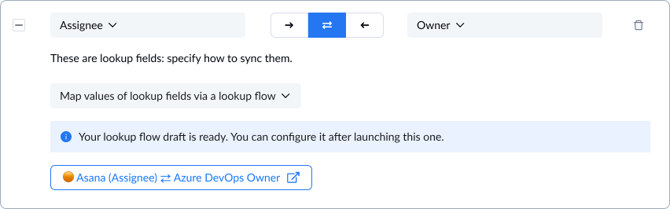
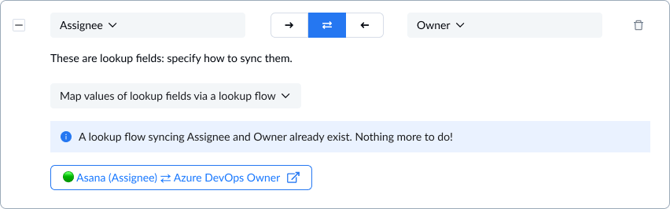
- If a matching lookup flow exists
If one or more flows already sync the same lookup relationship, Unito will display them in the dropdown. A green indicator means the flow is published; an orange indicator means the flow is not yet published.
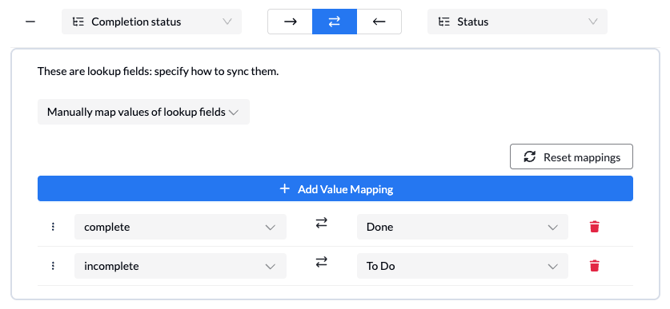
Step 4. If mapping manually, match values
Manual mapping opens a table where you can map specific reference values from one tool to another.
Step 5. One-to-many mapping (optional)
Lookup fields that support additional configuration display a plus sign (+) in the mapping row.
For these fields, you can choose to map values from one tool to multiple values in the other.
The order of priority runs from top to bottom. You can drag and drop rows to rearrange the order, and Unito will follow the order you set.
Mapping fields nested behind a lookup
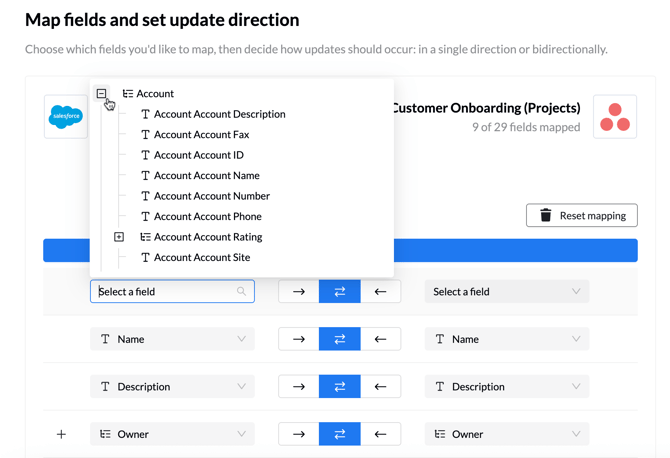
When a lookup field references a separate record — such as a Salesforce Account behind an Opportunity, or the most recent status update on an Asana project — Unito can drill into that record and map its individual fields directly, rather than syncing only the top-level reference.
On the field mapping page, click the related record to expand it. Unito surfaces the sub-fields available behind that lookup, and you can map them like any other field. You can drill up to three levels deep.
Examples:
- Salesforce Opportunity to Asana project: pull Account-level details such as Industry, Region, account phone number, or billing country onto the Asana project.
- Asana project to Salesforce custom object: map a project status update's title, description, author, and status name onto the linked Salesforce record.
Note: these nested fields sync one-way — from the lookup outward to the destination field.
Example use cases for lookup sync
| Tool A + lookup field | Tool B + lookup field | What this enables |
|
Jira Sprint |
Asana Custom dropdown / tag |
Unifies sprint or iteration terminology across teams. |
|
ServiceNow Customer field |
Jira Customer reference field |
Ensures customer context travels with the work item across teams. |
|
Jira Components |
Azure DevOps Pick-list fields |
Keeps component metadata consistent across dev systems. |
|
Asana Custom fields |
Smartsheet Dropdowns |
Standardizes status and category values for portfolio reporting. |
|
Salesforce |
Asana |
Links tasks to the correct customer record across systems. |
|
Asana "Blocking" / "Blocked by" |
Jira |
Keeps dependencies aligned across project and development tools. |