
This article applies to Unito’s new flow builder available on certain Enterprise plans starting December 1st, 2025.
If you’re still using Unito’s classic flow builder, see this guide.
In this article:
- Connect your app or tool accounts
- Define what and where you want to sync from
- Repeat the same steps for your second tool
- Choose flow direction and sub-items
- Add rules to include or exclude items
- Set field mappings
- Launch your flow
Connect your app or tool accounts
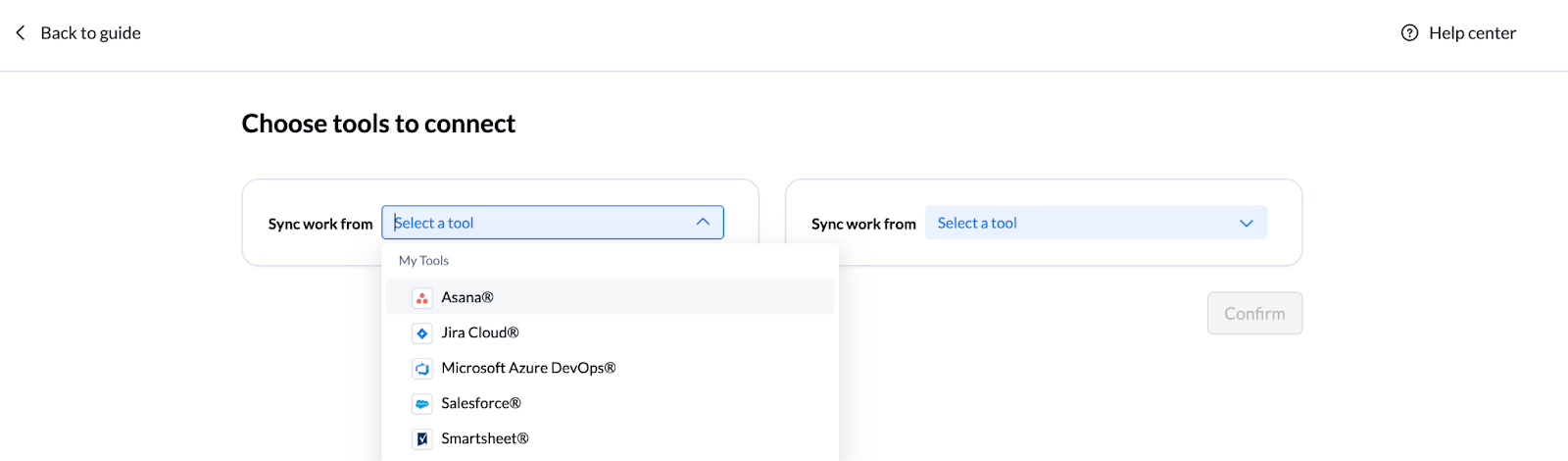
The first step to setting up a Unito flow is to connect your accounts for each app or tool you want to sync.
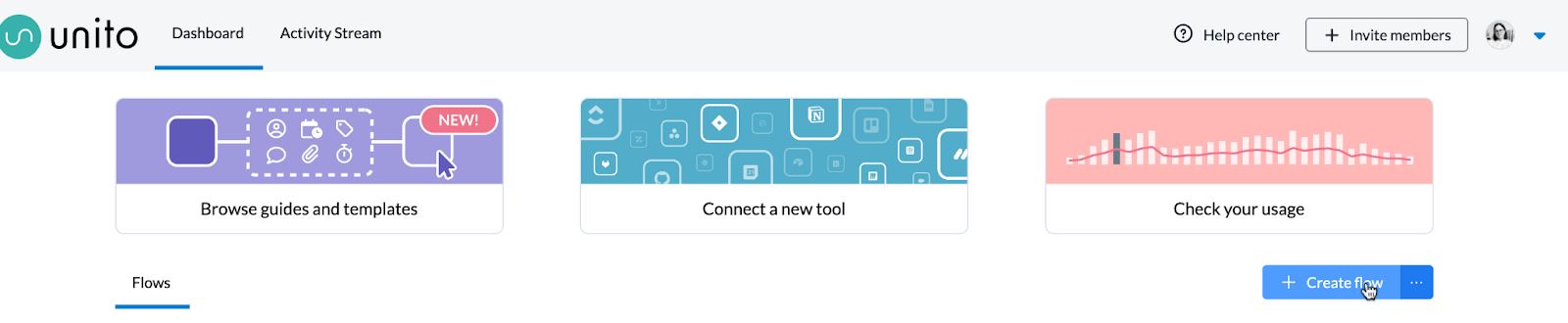
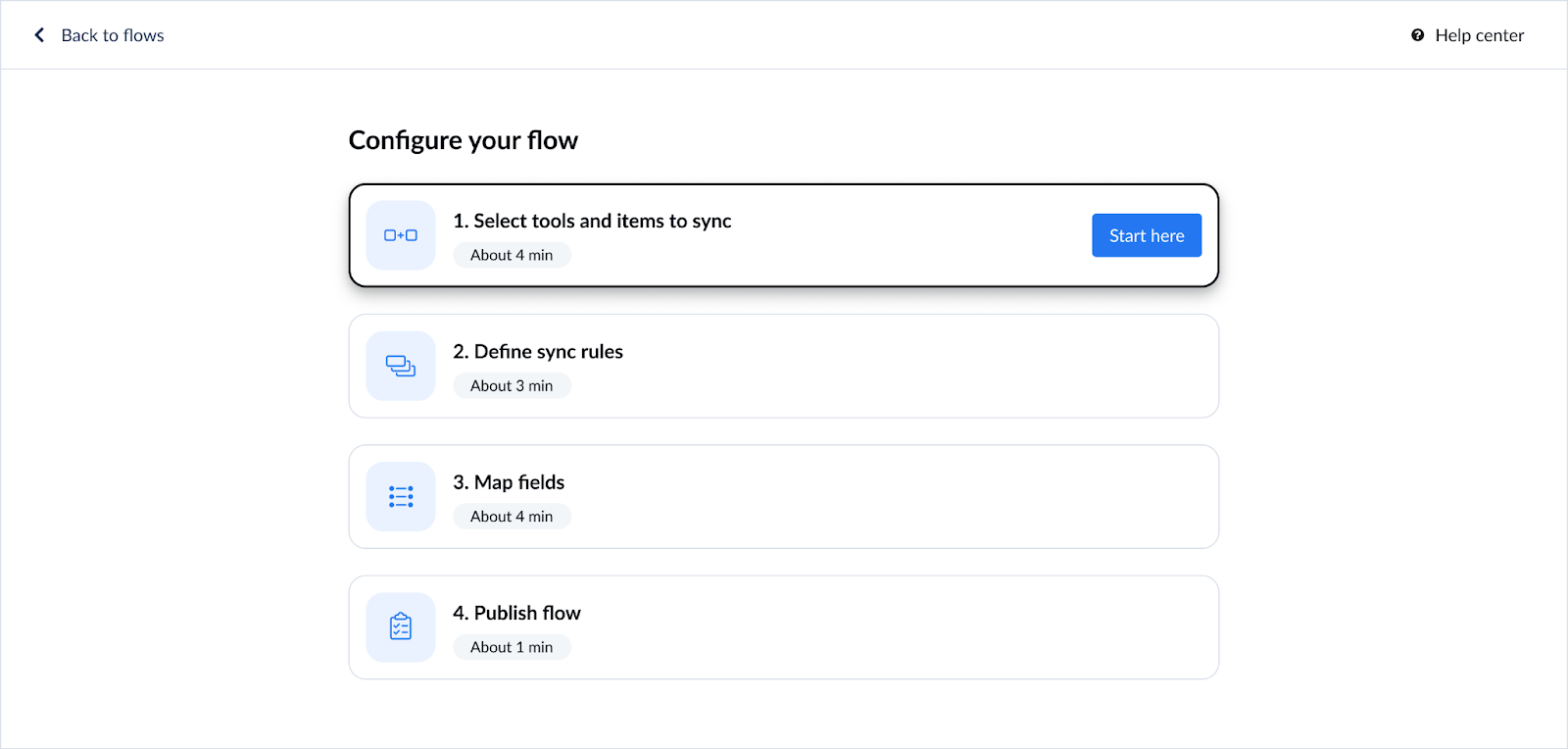
1. Sign in to app.unito.io and click +Create flow from the Unito dashboard.If you don't have any flows already created, you'll automatically be brought to the flow builder screen instead of the Unito dashboard.
Define what and where you want to sync from
1. Start by choosing the workspace or main area that contains the work you want to sync.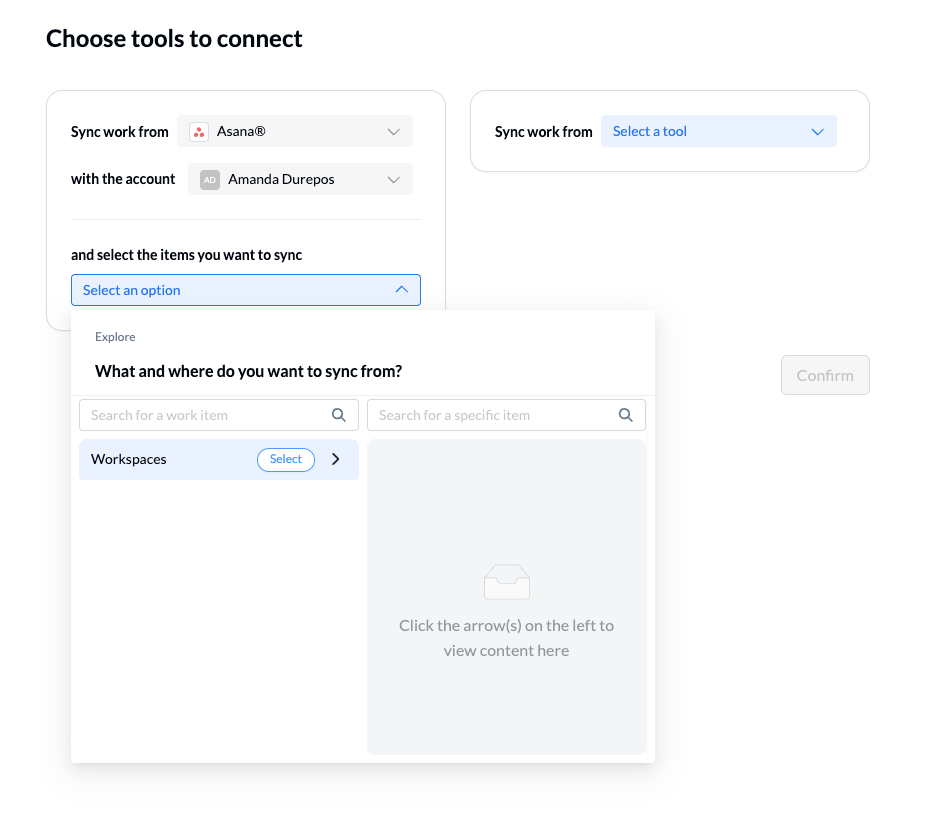
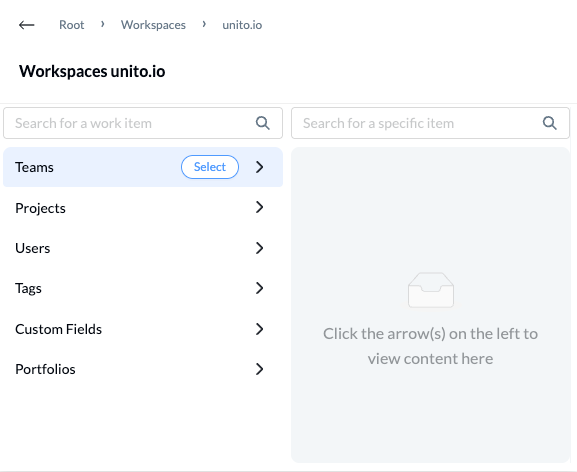
- Select the container itself if you want to sync an item such as a project or a portfolio.
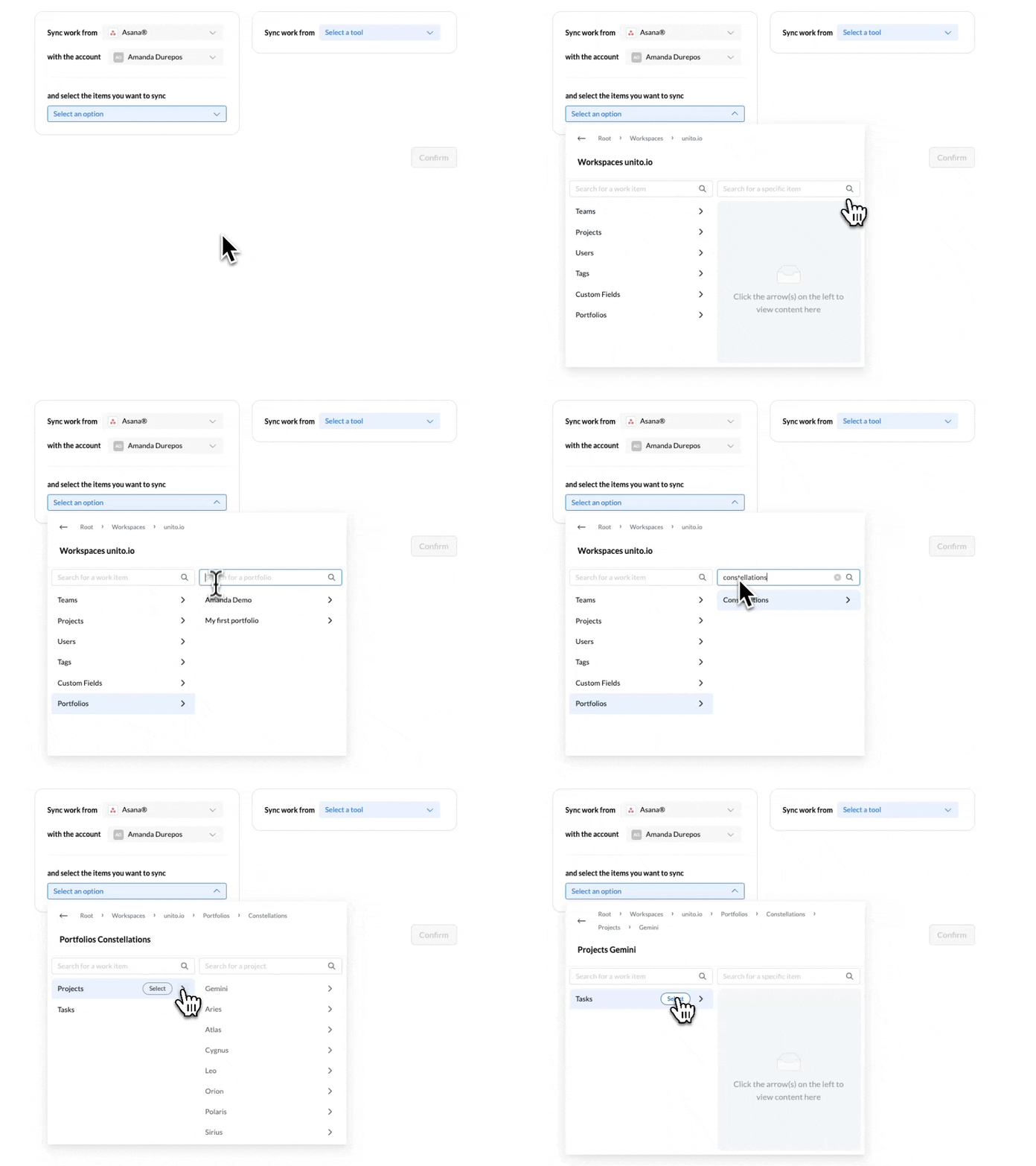
- Or drill down through the structure of your tool — into a subfolder, list, or epic — to find the type of work item you want to sync. This could be tasks, issues, tickets, rows, or another item type, depending on the tool.
Only go as far as needed to reach the level that holds the work you actually want to sync.
Repeat the same steps for your second tool
Once you’ve finished setting up your first tool, do the same for the second one.
- Select the workspace or main area you want to sync to
- Drill down through its structure until you reach the right level – stop wherever it makes sense for your use case
- Choose the type of work item you want to sync in that tool
Just like before, the left side shows where your data will live, and the right side shows what type of work item you’ll be syncing.
Choose flow direction and sub-items
Once you’ve selected the work items you want to sync in each tool, a new section appears. This is where you can also choose to sync attachments and comments, as well as sub-items below the parent work item you just defined.
You can add sub-items up to 9 levels deep. Learn more about syncing hierarchies in this article.
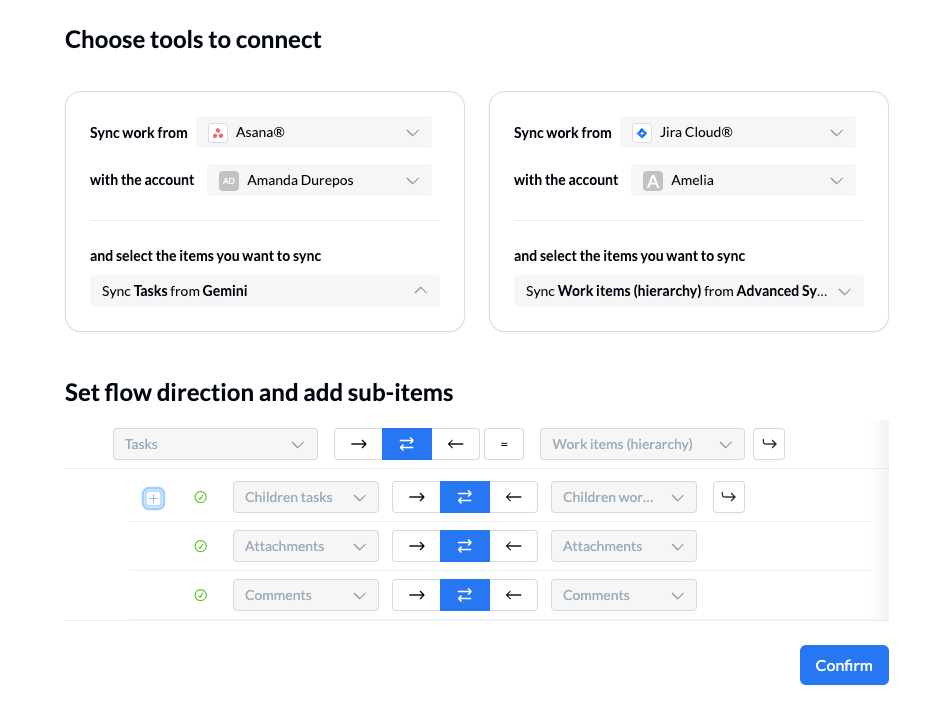
For each item and sub-item, you’ll also decide how information should move between your tools — whether updates should flow one way, both ways, or only between existing matched records.
One-way flow direction:
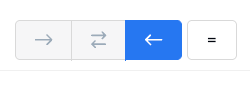
- How it works: When you manually create a new work item in the "source" tool, Unito automatically creates a synced item in the "destination" tool. Items manually created in the destination will not sync back to the source.
- Best for: Scenarios where you want to dispatch assignments from one place to another, send reporting data, and maintain more control over the flow of information.
- Example: GitHub issues created in the connected repository will automatically be added to the connected Asana project where they will appear as new tasks:
Two-way flow direction:
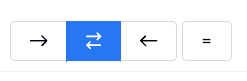
- How it works: Manually creating a new work item in either tool triggers the automatic creation of a synced item in the other tool.
- Best for: Collaborative workflows where you need to create and track new items in both tools seamlessly.
- Example: Records created by a team in ServiceNow automatically generate linked work items in Azure DevOps and vice versa.
Note: Flow direction only impacts the creation of work items, not updates to individual fields. That's handled in the field mapping stage.
Matching:
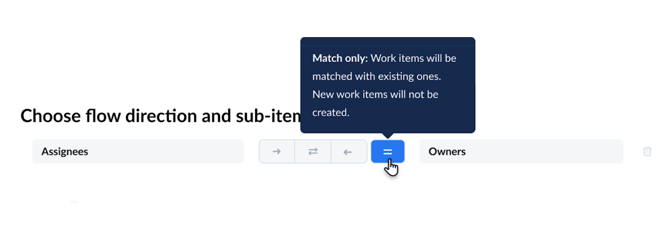
- How it works: Instead of creating new items, Unito searches for existing records that already match between tools (exact match and case sensitive). It then links them so they can stay aligned.
- Best for: Scenarios where both tools already contain related data — such as customer accounts or product SKUs — and you want to align them without creating duplicates.
- Example: You’re syncing a CRM and an ERP. Your CRM is typically the source of truth for deals and contacts, while your ERP holds the source of truth for accounts and SKUs. When creating a new deal in your CRM, Unito first checks your ERP to see if the account already exists. If it finds a match, it links the records rather than creating a duplicate.
Add rules to include or exclude items
Every Unito flow starts with a set of default rules to sync all items created after launching your flow. You can add additional rules to exclude items from syncing based on specific fields in your source tool.
How rules work
Your flow follows a simple "if this, then that" logic:
- Rules - (IF / AND): These conditions determine which work items will sync. You can set multiple conditions, all of which must be met for an item to sync.
- Actions - (THEN/AND): These determine what happens to the synced work items in the destination tool (e.g., setting a specific status, assigning to a particular person).
Syncing historical data
You can modify or remove this rule if you need to sync historical data or have different filtering criteria. Simply select the bin icon beside a rule to remove it.
In the next example, Unito will only sync tasks from Internal IT Requests to Demo Bug Report Project if they are:
- open (e.g., not completed, deleted or archived);
- created after the date mentioned;
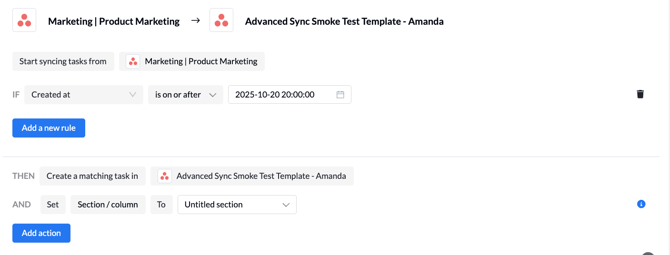
You could also set a rule so Unito only syncs work items with a certain label or tag, status or section, assigned to a particular user, or based on other field-related criteria.
Set field mappings
Next, you get to decide what information you want to see in your synced work items, as well as pick directions for real-time updates for each pair of fields.
You can always choose to Map automatically to begin with a prebuilt template. In either case, you'll be able to then modify and personalize your field mappings.
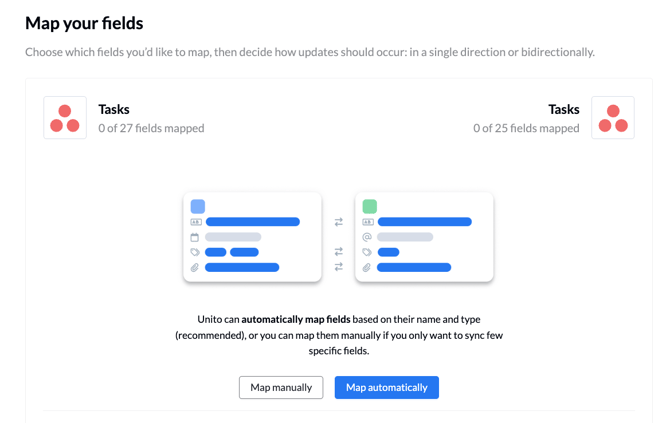
1. Start by clicking + Add mapping to add a new pair of fields to your flow.

2. Then, click Select a field for each tool.
3. You can then set an update direction for that pair of fields. You can choose between two options:
- Two-way (↔): Manual changes in either tool will update the other.
- One-way (→): Only changes on one side will update the other.
Mapping lookups
Lookups (also called references) represent connections between records that are related but don’t depend on each other to exist. They’re used to preserve relationships and context between items across tools — for example, keeping an assignee, parent task, or related ticket aligned.
Learn more about syncing lookups in this article.
Publish your flow
Once you've finished setting up your flow, it's time to publish! When you click "Publish," you'll see a pop-up similar to this:
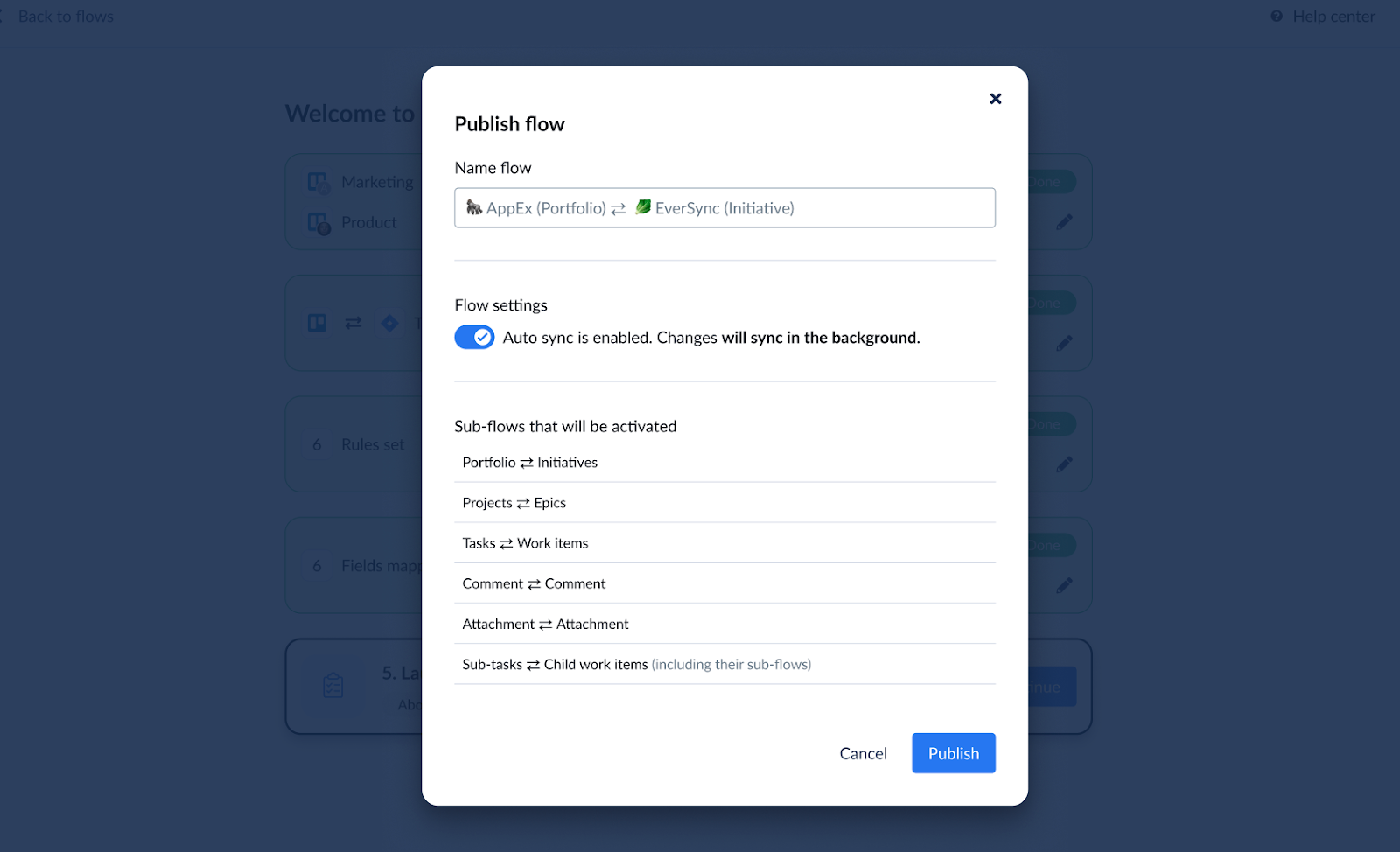
Name your flow something descriptive that will help you easily pull it up later if needed.
You have the option to toggle Auto sync on or off. This determines whether or not Unito will automatically create and sync work items, or if you'd rather do so manually.
Finally, if you’ve created a hierarchical flow, you will also see a list of all the sub-flows you’ll be launching along with your parent flow.