
In this article:
- What is an Asana service account?
- How to use an Asana service account with Unito
- A few things to keep in mind
What is an Asana service account?
An Asana service account is an Asana account that has access to all the data in your organization without being associated with a real, human user. This account has a presence in Asana the way a human user does, allowing it to take certain actions automatically. For example, an Asana service account can automate access management, add rules to Asana projects, export data with the Asana API, and more. A service account is especially useful for accessing integration platforms like Unito without tying access to a specific human user.
Asana service accounts are only available with Enterprise and Enterprise+ plans, and they can only be added to organization workspaces, not personal workspaces. You need Super Admin permissions to create an Asana service account.
How to use an Asana service account with Unito
To use an Asana service account with Unito, you’ll need to create the service account, connect it to Unito, and verify the connection.
Creating an Asana service account
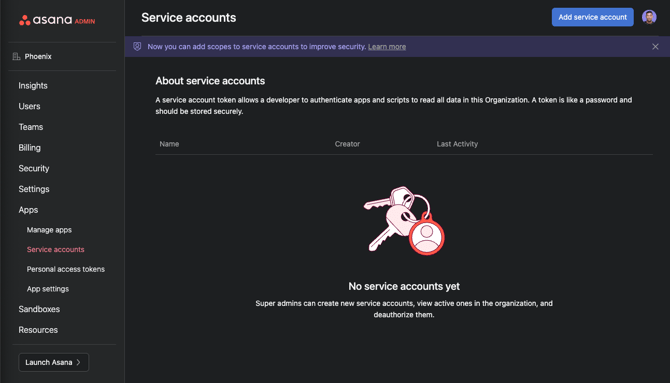
In Asana, navigate to the Admin console at https://app.asana.com/admin/. Then, click on Apps. Then, click on Service Accounts and click “Add service account” in the upper right.
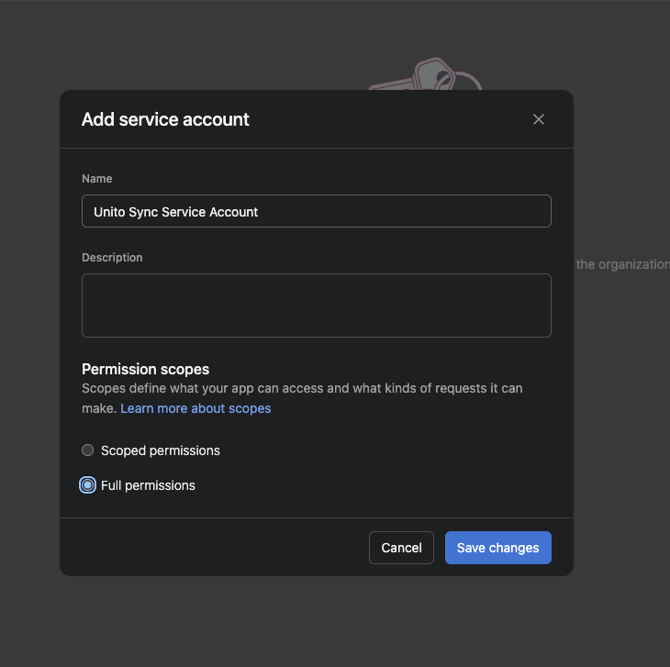
Give your Asana service account a name, such as “Unito Sync Service Account.”
Set your service account’s permission scope to Full Permissions.
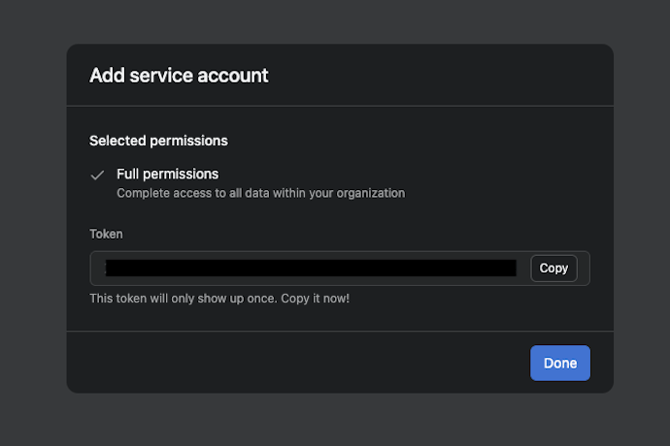
Copy the generated token on your screen. It will only be shown once, so copy it and keep it somewhere secure.
Connect your Asana service account to Unito
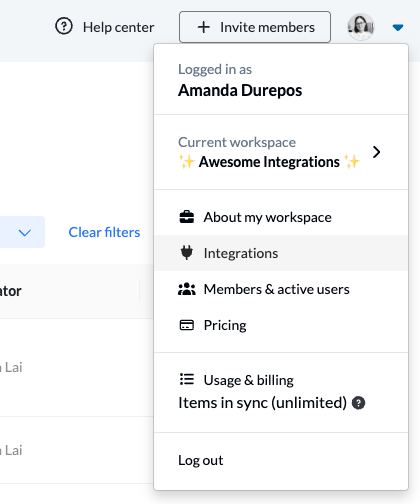
Log in to Unito and click on your profile icon in the top right corner. Then, click on Integrations.
Find Asana in the integrations list and click Connect account.

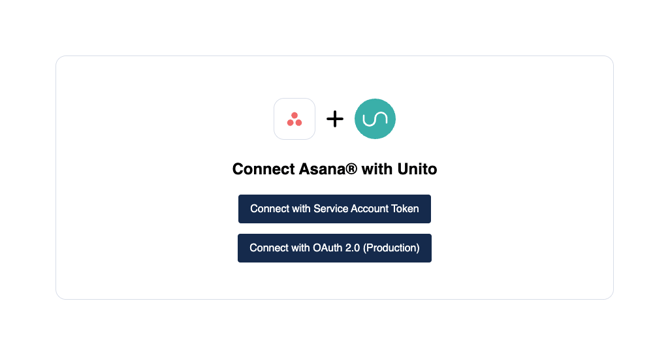
You’ll be prompted to choose between using a Service Account Token or OAuth 2 to authenticate Asana. Click Service Account Token.
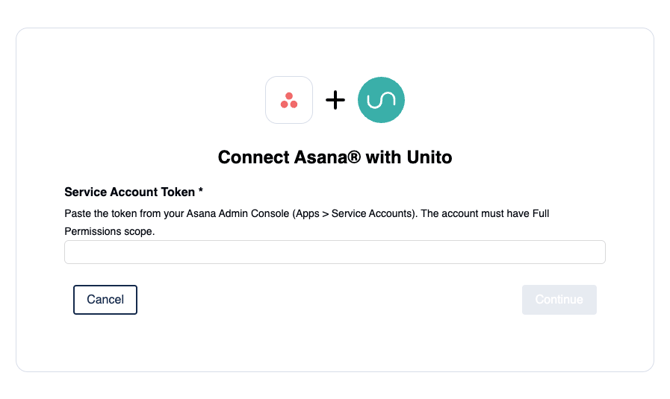
Copy and paste the token you saved when creating your service account.
Verify that your service account is properly connected
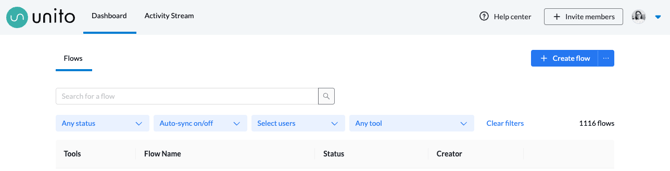
Once you’ve connected your service account, go back to your Unito dashboard and click + Create flow.
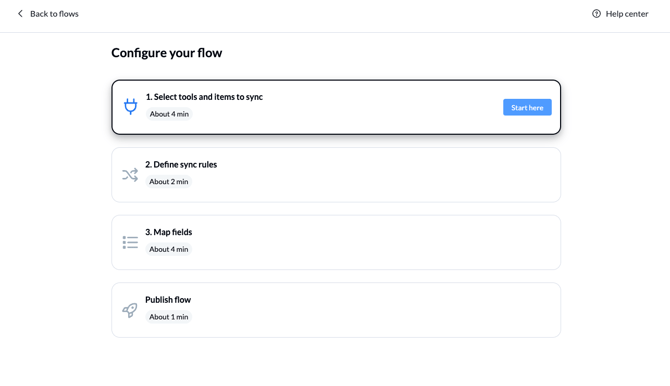
Click Start here.
Click + Select a tool, then click on Asana.
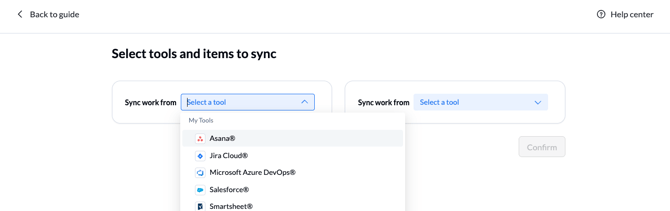
Click on the “with the account” dropdown.
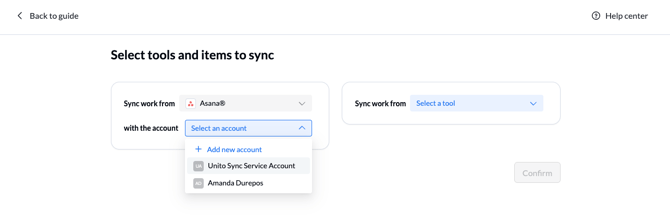
If you can choose your service account, it’s been properly connected to Unito. If you can’t choose it, go back to the Integrations page and re-connect Asana.
A few things to keep in mind
If you’re using an Asana service account to integrate Asana with Unito, keep the following things in mind.
- Permissions: Service accounts need full permissions to work properly with Unito. This gives the account access to all standard API endpoints (e.g., tasks, projects, portfolios, users).
- Visibility: Service accounts have full visibility on your entire Asana workspace, including private projects and tasks. It will also have access to all portfolios in a workspace, not just the ones you own.
- One workspace: A service account can only belong to one organization. It can’t be shared across workspaces.
- Token expiration: The security token generated when you create your service account doesn’t expire. The only way it can become invalid is if it’s revoked in the Asana Admin Console or the service account is deleted.
- Token delay: It might take a few minutes for a newly created service account token to become active. If you get an authentication error when connecting a new service account to Unito, wait a few minutes and try again.
- No personal identity: Asana tasks, projects, and portfolios created by a service account are attributed to that service account, not to a human user. Service accounts have an empty email address and a system-generated name.
- Troubleshooting: If you’re not able to connect your Asana service account to Unito, even after waiting for the security token to become active, try regenerating the token in the Admin Console.