
In this article:
What are lookups in Unito?
Lookups are non-hierarchical associations that link one work item to another. Instead of a simple text string, a lookup flow treats a field (like an Area Path) as a dynamic object. These connections add important context such as owners, collaborators, or linked records. They do not create a parent-child structure, but they help teams understand relationships and responsibilities.
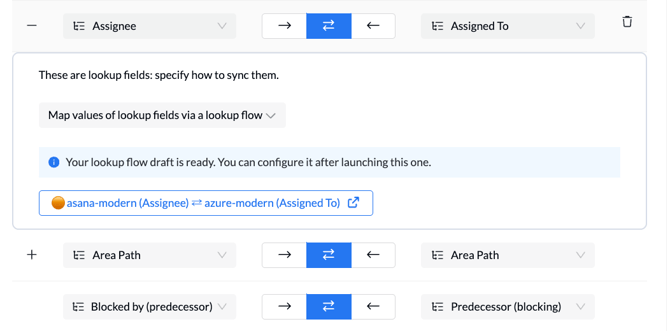
Example: Syncing Area Paths
In many organizations, labelled options — like Area Paths or Iteration Paths — are strictly governed in Azure DevOps.
Syncing them keeps terminology aligned across teams. Using a lookup flow, Unito can translate an Azure DevOps Area Path into an equivalent Custom Field dropdown option in Asana. Because the lookup flow manages this relationship, if an engineer adds or changes a value in Azure DevOps, Asana automatically stays aligned without any manual rework from the PMO team.
How to sync Area Paths between Asana and Azure DevOps
<iframe width="560" height="315" src="https://www.youtube.com/embed/yL5UweJLGMk?si=WFJCWvo20b68mpY7" title="YouTube video player" frameborder="0" allow="accelerometer; autoplay; clipboard-write; encrypted-media; gyroscope; picture-in-picture; web-share" referrerpolicy="strict-origin-when-cross-origin" allowfullscreen></iframe>
To fully sync your work items and governed fields using lookup flows, you will actually build two flows. One flow will sync the work items you want to track in each tool. The other will be a lookup flow, pairing the governed fields (like Area Paths) that those work items refer to.
To create a lookup flow, follow these steps.
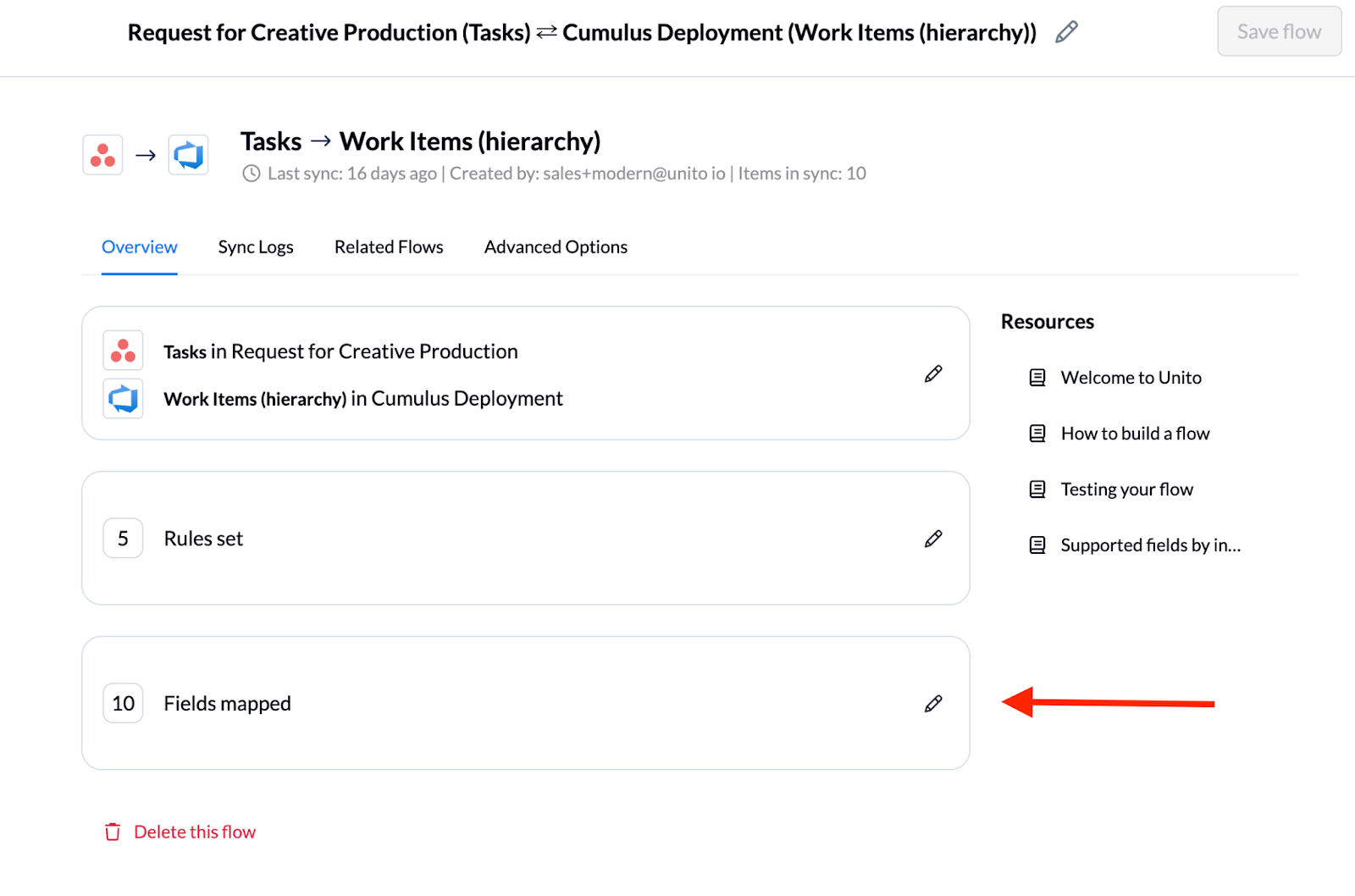
Navigate to your top-level flow
Navigate to the flow where you would like to add the mapping for your lookup flow. Enter the flow and navigate to the Fields Mapped menu.
Add the mapping
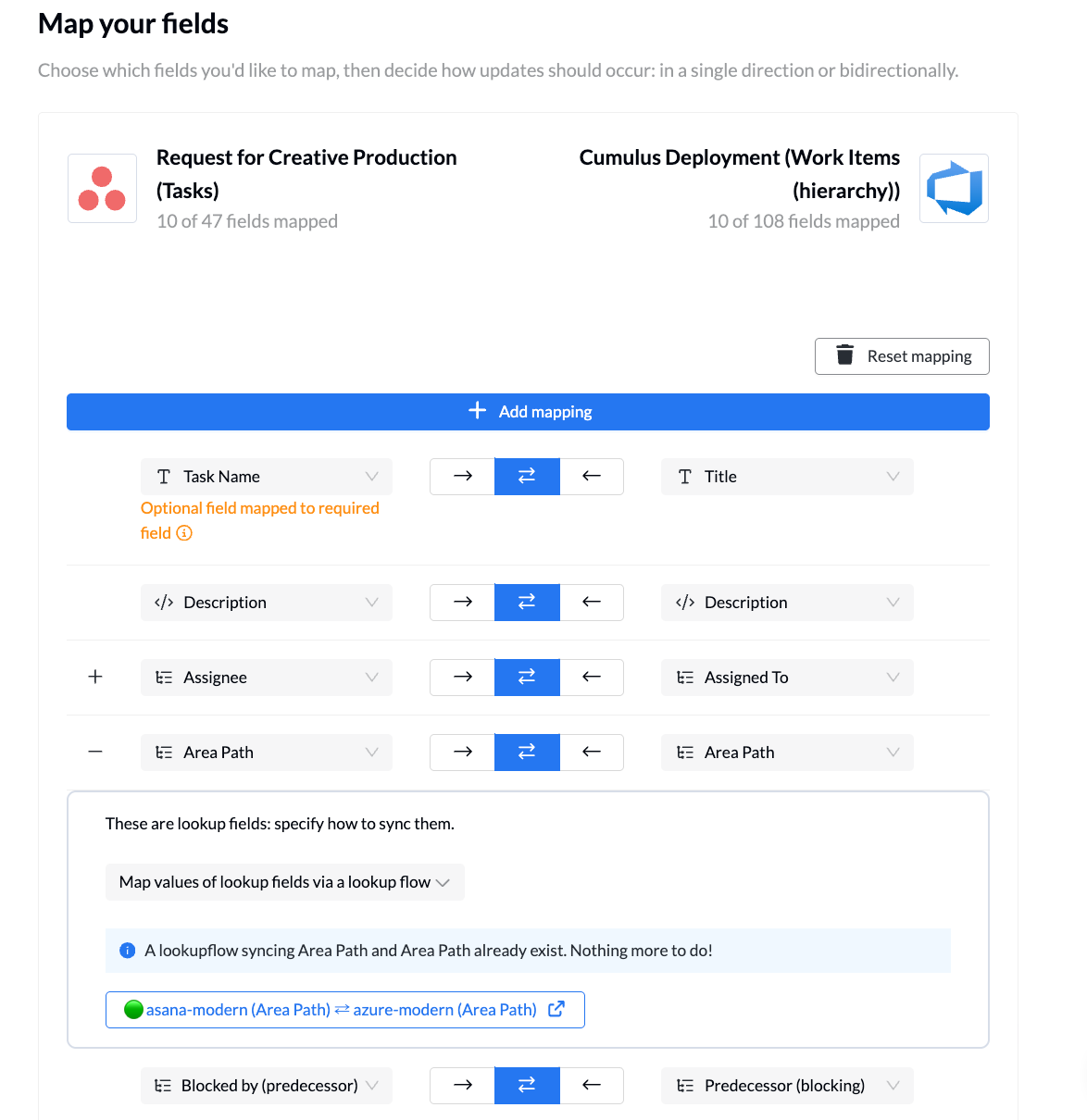
Click the + Add mapping button at the top of the page and select your area path fields in both tools.
When Unito detects a field that links to another work item, it will surface configuration options.
When mapping Area Paths or other lookup fields, choose to Map values of lookup fields via a lookup flow. This will create a draft flow, ensuring Unito automatically creates and maintains your lookup values for you. (Learn more about when to map lookup fields via a lookup flow in this article.)
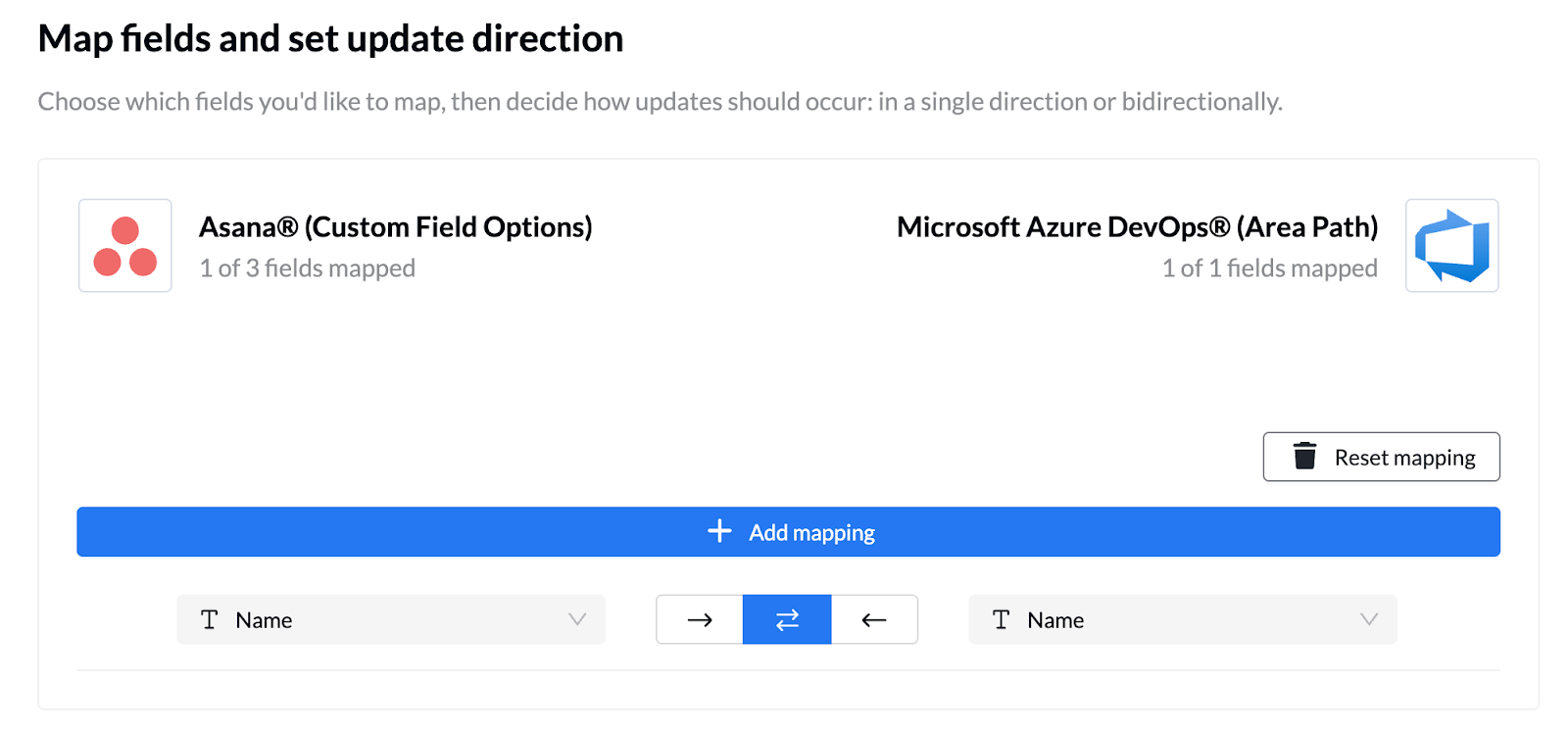
Enter the draft flow for your Area path fields. Ensure that on the Fields Mapped menu in this flow, the Name field is mapped.
If you have values that are the same in both tools that had already been created manually in both, you can turn on matching on your rules page.
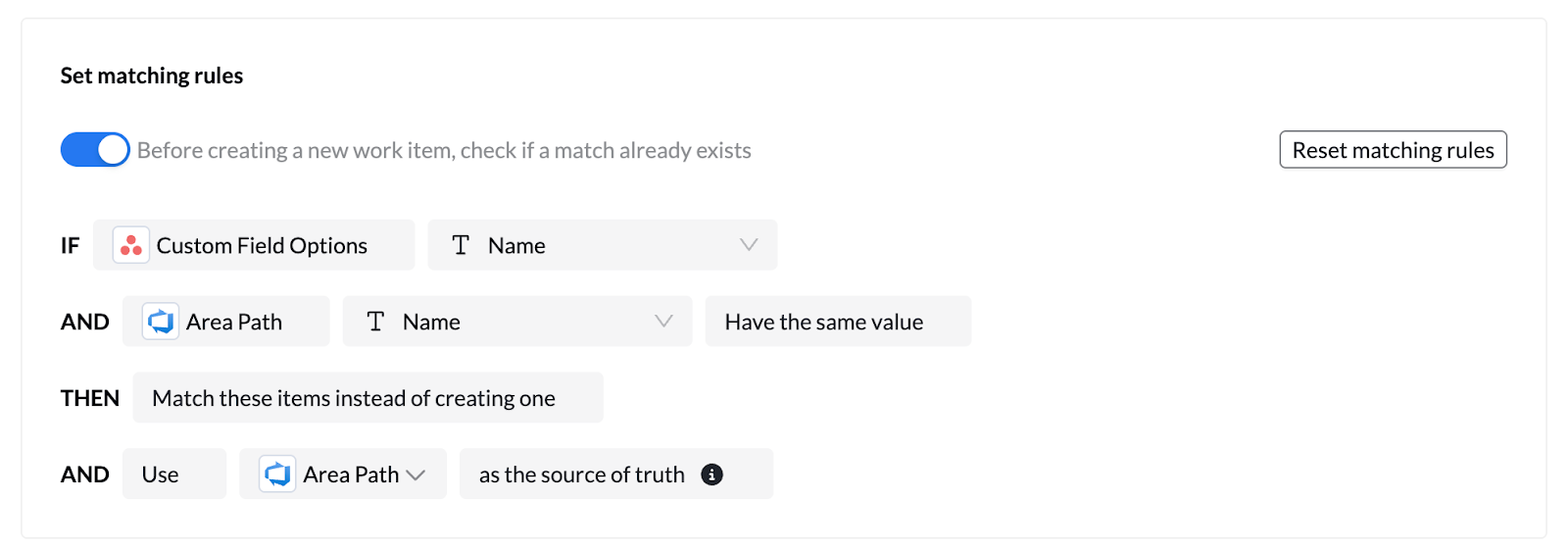
Once your lookup flow is set up, you can launch your lookup flow!
Don’t forget to navigate back to your parent flow where you had added the Area Path <> Area Path mapping and save the change historically.
Using a lookup flow for Area Paths ensures that your development and project management tools share a unified language for categorization, keeping distributed teams aligned by automatically translating and maintaining these governed values across systems.
Don’t see lookups in the flow builder?
This functionality is only available for enterprise accounts using the new flow builder released after December 2025. Get in touch with our team to learn more about Advanced Sync features.