In this article:
Custom field support
Custom fields are fields that you create yourself, like text fields and dropdown menus, as opposed to default fields that you don’t customize. Unito supports syncing custom fields and field types across Advanced Sync integrations. This means you can map custom fields between tools, filter data using custom field values in your rules (for most connectors), and include them in automated actions.
Important considerations:
- Tool Limitations: Some tools may have limitations on the types or number of custom fields they allow. Be sure to consult the tool's documentation for details.
- Compatibility: Not all custom fields can be mapped directly to each other. Unito will guide you towards compatible field types, but some manual adjustments or workarounds might be necessary.
Custom field types
Custom fields are mappable by type (e.g., Text ↔️ Text, Number ↔️ Number, Date ↔️ Date). However, most fields can be mapped to Text fields except for some limitations (e.g., Company, Contacts, Organization).
| Text | Number | Dropdown | Date |
|
|
|
|
Lookup fields
Lookup fields link work items with other work items (e.g., Asana tasks with other Asana tasks) or work items with containers. For example, you can sync dependencies between Asana tasks with dependencies between Jira issues, allowing both tools to properly show the relationship between work items, no matter where you work. Examples of lookup fields include:
- Asana tasks linked to projects or goals
- Jira work items linked to Epics
- Salesforce cases linked to accounts
- ServiceNow incidents linked to services
How to sync custom fields with Unito
- Create Your Flow: Start by setting up a new Unito flow or editing an existing one.
- Navigate to Field Mappings: Go to the "Field Mappings" section of your flow.
- Add Custom Field Mapping: Click "+ Add mapping" and select your custom field from the dropdown list for the relevant tool.
- Map to Compatible Field: Choose a corresponding field in the other tool. Unito will suggest compatible field types, but you can also manually select a field if needed.
- Configure Sync Direction (Optional): If desired, adjust the sync direction for the custom field mapping (one-way or two-way).
- Save and Launch: Save your flow, and Unito will start syncing your custom field data!
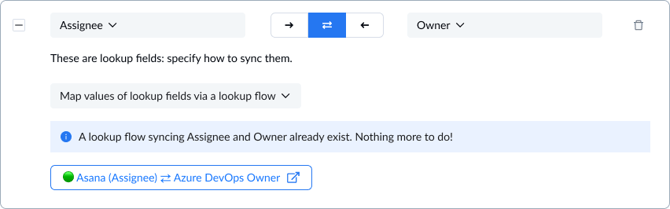
Here's an example of a custom field mapped between Asana and Azure DevOps.